Creating an Application Bar in Blend

Ingredients: Windows Phone Dev Tools beta, Expression Blend for Windows Phone

The application bar in Windows Phone 7 is a core visual element in any Silverlight application built for the phone.  The development tools make it very easy to implement an application bar with just a few lines of code. 

xmlns:phoneNavigation="clr-namespace:Microsoft.Phone.Controls;assembly=Microsoft.Phone"
xmlns:shell="clr-namespace:Microsoft.Phone.Shell;assembly=Microsoft.Phone"
>
<phoneNavigation:PhoneApplicationPage.ApplicationBar>
    <shell:ApplicationBar>
        <shell:ApplicationBarIconButton Text="delete"  
                IconUri="/Icons/appbar.delete.rest.png"/>
    </shell:ApplicationBar>
</phoneNavigation:PhoneApplicationPage.ApplicationBar>

This code can also be moved to a page resource or an app resource in case the toolbar is reused.  The toolbar can also be created in code for greater control.

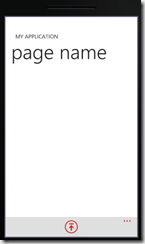
Along with other changes, the new beta of the Windows Phone dev tools now also allows Application Bars to be created in Blend for Windows Phone.
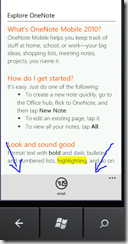
appbar

For those moving from the CTP to the Beta tools, you will find that there are some new improvements as well as some of the earlier limitations.

The Application Bar, as previously, has very slick transitions built-in.  It is a pleasure to work with.

As previously, the properties of an Application Bar cannot be bound (as far as I can tell), so the developer needs to go into code-behind, for the most part, to implement any complex visual logic (or even simple logic like hiding and showing Icon Buttons) as well as to handle click events. 

As previously, the Application Bar must be attached to a PhoneApplicationPage.  You cannot get different app bars to reveal themselves by attaching them to user controls.  If you have logic that requires this (for instance if you want different app bars to be used for different panels of a Hub) you will need to track the state of the hub and hide and show the appropriate Application Bar manually in the hosting PhoneApplicationPage’s code-behind.

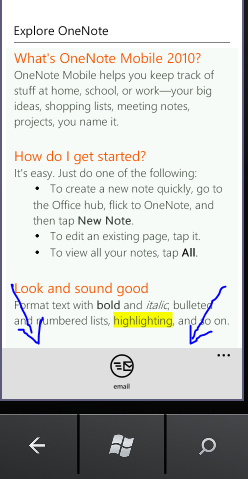
As for the new, ApplicationBarIconButtons now take a Text property (and in fact are required to have non-empty Text).  When a user selects the ellipses at the upper right of the application bar, the text will appear (in the picture above, taken from the One Note application, the text is “email”).

And, as I mentioned, the Windows Phone app bar is now Blendable.

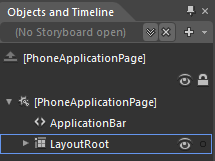
if you open up a new project in Blend for Windows Phone and select a page, you’ll notice a new element representing the ApplicationBar in the Objects panel.
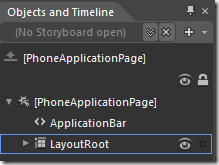
oandt

This is a property that takes an IApplicationBar object (that it takes an interface suggests that we can extend the base implementation of the ApplicationBar – though I have yet to find a good case for doing so).

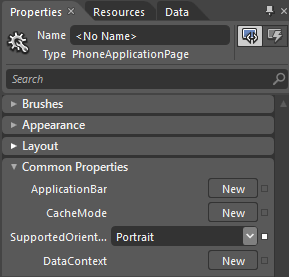
In order to add an application bar to our page, select the PhoneApplicationPage element in Objects and Timeline.  Now go to the Properties panel at the upper left of the Blend IDE and look for the Common Properties tab (alternatively, search for “ApplicationBar”).
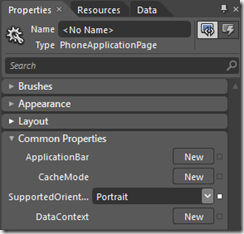
commonproperties 

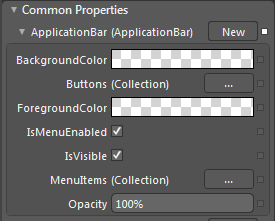
A new ApplicationBar can be created for the page by selecting “New”.
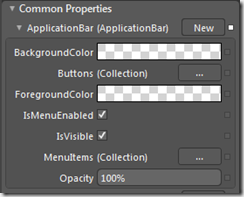
appbartab

Here things get a little funky.  I assume the features are still being added for the app bar – though there’s always the possibility that I have something wrong with my install.  The BackgroundColor and ForegroundColor never seem to change in the display of the Properties panel (though they do change in the XAML).  Also, if you select either the Buttons or MenuItems collection, you are thrown into a bit of confusion.  The following images show the steps for adding an icon button.

The screen after this shows a standard dialog box for a list.  You can select “add another item” from this dialog.

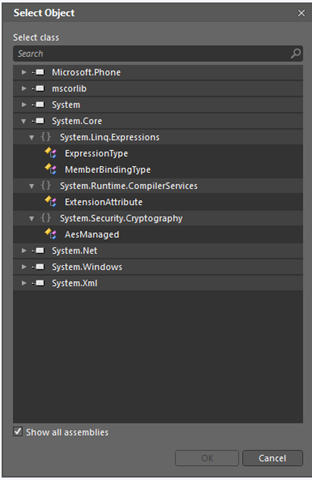
The “add another item” dialog, however, is messy. 
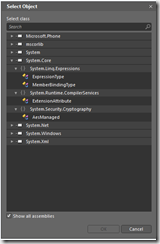
selecticonbutton 

Lots of classes besides ApplicationBarIconButton or ApplicationBarMenuItem show up even though these are the only two types you can actually add to an ApplicationBar.  This will undoubtedly get fixed within the next few months.  Search for ApplicationBarIconButton and select it to add an icon button to the app bar.

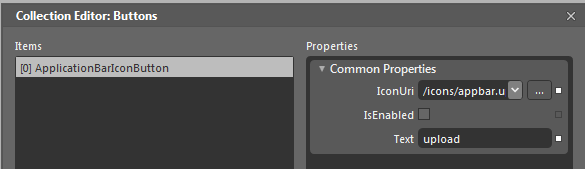
You will be returned to the buttons collection editor where you must now set two properties of an ApplicationBarIconButton: Text and IconUri.  (IsEnabled defaults to “true” if you leave it alone.)
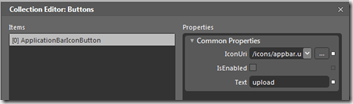
iconbutton

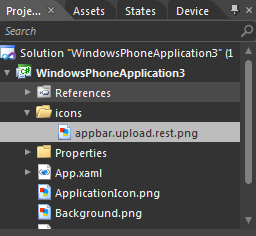
One of the very cool features here is that the dropdown box next to IconUri allows you to select from a list of standard Icons used in WP7.  When you select one of these, the IDE automatically goes out and copies the selected icon into a newly created “icons” folder under your project.

Not to belabor my war stories, but back in the day (I’m talking about last week) we used to have to download all the images from the web and then add them to our projects manually.  That may seem like no big deal, but there were actually two different sets of icons – one for the dark theme, which were white on black, and one for the light them, which were black on white.  Worse, there was no obvious way to find the theme currently being used, so we would check the background color of the app, in code, to determine whether it looked like the dark or the light them was being used.  Then we would programmatically switch out the icons based on what the background color happened to be.  But at least we had character back then and understood the value of a hard day’s work.

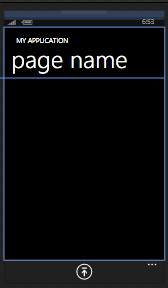
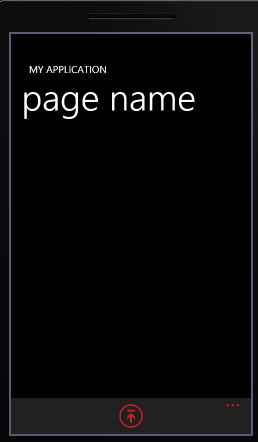
So now not only is all of that easier with the beta SDK, but you also get a designer preview of what your app bar looks like.
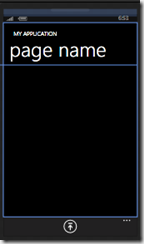
appbarpreview

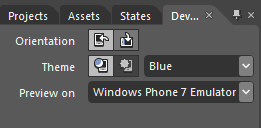
But wait … there’s more.  If you go to the upper right docking panel in the standard layout, there is now a “Device” tab that allows you to preview how your app will look under different themes.
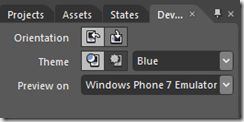
devicepanel

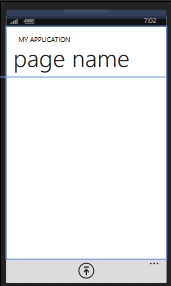
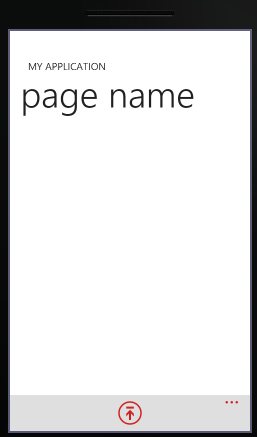
If you select the Light device, the app bar shown above will now look like this.
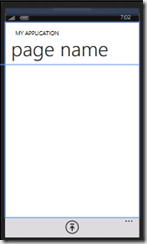
lighttheme

Your project, however, still only has the original image you added when you selected a value for the IconUri property of the app bar icon button.
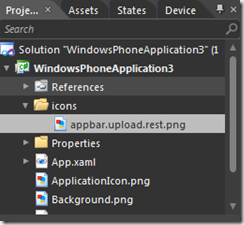
oneicon

We no longer have to manage multiple images for the same icon button.  WP7 is apparently manipulating the one physical image in order to accommodate the current theme on the device.

This technique for image management allows for an interesting additional feature.  You will recall from above that the application bar has a foreground property.  If I set this to red, Blend actually freaks out and doesn’t show the app bar anymore.  If I run the app in the emulator, however, I get this and this:
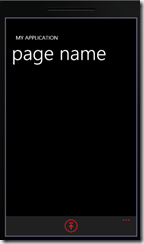
rediconbutton redongray

Setting the background property, in turn, only affects the “clicked on” image.  When you click on an icon button, the foreground color becomes the background color for the image and the specified background color becomes the foreground color.  When the icon is not clicked, it still looks as it does above.  It’s a little confusing, but still a very cool effect.

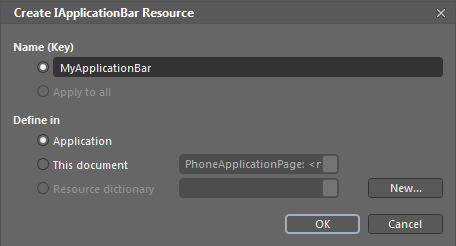
Like most controls in Blend, once you finish defining your ApplicationBar, you can convert it into a resource.  Select the difficult-to-see little white square next to the “New” button to open up a dialog that will walk you through making the app bar a page or an application resource.

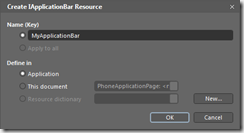
resourceit

createIApplicationBar

This will change the XAML in your page to this:

    <phone:PhoneApplicationPage.ApplicationBar>
        <StaticResource ResourceKey="MyApplicationBar"/>
    </phone:PhoneApplicationPage.ApplicationBar>

while the actual implementation of the ApplicationBar will be in your App Resources.

Summary

The improvements to the ApplicationBar have been incremental but are very much welcome.  Once all the bugs have been worked out, Blend’s support for the ApplicationBar will be useful.  I still wish we could bind the ApplicationBar properties.  Considering how much we get for free, however – standard icon images, snazy transitions – there’s really not much to complain about and lots to be grateful for.  The Windows Phone implementation of the ApplicationBar makes it easy to implement and attractive and common user interface for performing simple tasks.

Uninstalling Windows Phone CTP Dev Tools

The new beta tools for Windows Phone have just come out.  If you haven’t previously downloaded the April CTP Tools, you are in great shape.  Just download from the link above and you should be good to go.

If you have previously installed the CTP, however, there is some uninstalling to do first.  Moreover, a peculiarity of the CTP was that it worked only with the Blend 4 CTP and did not work with the Blend 4 RTM.  This entails that you will also want to uninstall the Blend 4 CTP if you have been holding out all this time.

The Blend / WP7 story has also gotten more interesting.  The dev tools linked above include an edition of Blend called Blend for Windows Phone beta (sort of the equivalent of Visual Studio Express).

If you have a subscription to MSDN, you now need an Ultimate subscription to get Blend 4 (as part of the Expression Studio Ultimate).  Blend 3 used to be available with the Premium subscription but, alas, no longer.  You can get the Expression 4 Studio Trial here.

However, the new developer tools do not work with Expression Blend 4.  They only work with Blend for Windows Phone beta.  But at least now you can use the Blend 4 RTM for your other Silverlight and WPF projects.

Uninstall

Assuming you have the Blend 4 RC and the April CTP Refresh of the Windows Phone dev tools, you will want to uninstall the following:

  • Microsoft Expression Blend 4 CTP
  • Microsoft Windows Phone Developer tools ENU

[Reboot your OS]

  • Microsoft Expression Blend 4 Add-in Preview 2 for Windows Phone
  • Expression Blend SDK RC for Silverlight 4
  • Expression Blend SDK RC for .NET 4

That seemed to do it for me.  In the process several other Phone related components were automatically uninstalled including:

  • Microsoft Windows Phone Developer Resources
  • Microsoft XNA Game Studio 4.0 Windows Phone Extensions
  • Windows Phone Emulator x64 – ENU

Reinstall

From here I

  • installed the RTM for Blend 4 (just so I can use it for Silverlight 4 projects). 
  • installed the Windows Phone Developer Tools beta.

What’s Changed

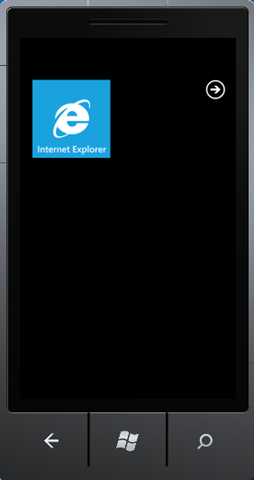
1. First of all, the emulator has a new look.  It seems a little smaller to me.  It also has a flatter look, and the black has been replaced with a gray/silver chrome.

newEmulator

2. If you were using an unlocked ROM for your development, you are back to the regular unlocked ROM until the XDE gurus get around to unlocking the new one.  You can read this XDE forum thread to learn more.

3. Blend 4 RTM appears to be useless for phone development.  You will need to use the Blend for Windows Phone beta for your integration and animation work.  I tried, of course, to open a project built in “Blend Express” with Blend 4 RTM, but got a message that I didn’t have the correct version of the WP7 Tools installed.

4. On the flip side, Visual Studio (Premium or Ultimate) now allows you to add service references.  Previously you had add references in Visual Studio 2010 Express and then copy them into your VS 2010 project.  This is much nicer.

5. Third party templates are now broken.  I’ve been using Laurent Bugnion’s MVVM templates and now understand why he has been putting off upgrading them. 

6. All your current phone apps will need to be fixed because they will be broken.  The Windows Phone team moved lots of assemblies around and reorganized namespaces.  You’ll need to go through your apps and fix your assembly references as well as the namespaces in XAML as well as in your code.  Jaime Rodriguez has blogged on the steps necessary to repair your apps.  His blog is currently getting slammed – so if you can’t get through, just keep trying. 

WP7 InputScope

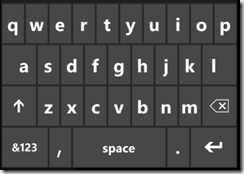
qwerty

In Windows Phone development, InputScope is a property that can be attached to a TextBox control.  It is also one of the most convenient features of Silverlight for Windows Phone.

On a phone device, we cannot depend on having a keyboard to enter text in our applications.  The InputScope attached property provides a way to automatically associate a digital touch-aware keyboard to textboxes in our application.  The syntax, moreover, is extremely simple.  To create a keyboard like that shown above, all you have to do is set a value for the InputScope property like this:

<TextBox Name="myTextBox" InputScope="Text"/>

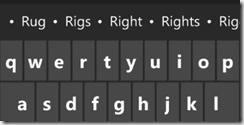
when the TextBox receives focus, the visual keyboard automatically pops up.  When focus leaves the TextBox, the keyboard will hide itself.  Additionally, the “Text” input scope has predictive text completion built in.  If you begin typing “R-I-G” and the InputScope is set to “Text”, the visual keyboard will make some suggestions on how to complete your word.

qwerty2

I showed the short syntax for the InputScope above.  In the Blend 4 RC, the xaml parser in design mode marks the short syntax as invalid (though it will still compile).  The longer syntax for setting the Input Scope looks like this:

<TextBox x:Name="myTextBox">
    <TextBox.InputScope>
        <InputScope>
            <InputScopeName NameValue="Text"/>
        </InputScope>
    </TextBox.InputScope>
</TextBox>

I am currently still using the Windows Phone April CTP Refresh, in which not all of the Input Scope implementations are complete.  Hopefully in the next drop I will be able to show more examples of the various Input Scope keyboard designs.

Using the long syntax above will allow intellisense support to provide a listing of all the input scope values that can be entered for the InputScopeNameValue.  You list out these values programmatically by using a little reflection (the Enum class in Windows Phone is a bit different than the regular C# enum class, so GetNames isn’t available):

var inputScopes = new List<string>();

FieldInfo[] array = typeof(InputScopeNameValue).GetFields(
        BindingFlags.Public | BindingFlags.Static);
foreach (FieldInfo fi in array)
{
    inputScopes.Add(fi.Name);
}

this.DataContext = inputScopes;

A simple app can be written to try out the different input scope keyboards as they become available.  If you use the code above to set the data context on your page, the following xaml should provide a select list for experimenting with different visual keyboards:

<StackPanel>
            <TextBox x:Name="myTextBox" 
        InputScope="{Binding ElementName=lbInputScopes
    ,Path=SelectedItem}"/>
<ListBox x:Name="lbInputScopes" 
            ItemsSource="{Binding}" 
            Height="500" />
</StackPanel>

Here is the full list of InputScopes that are expected to be supported, based on the current enum names for InputScopeNameValue:

1. AddressCity
2. AddressCountryName
3. AddressCountryShortName
4. AddressStateOrProvince
5. AddressStreet
6. AlphanumericFullWidth
7. AlphanumericHalfWidth
8. ApplicationEnd
9. Bopomofo
10. Chat
11. CurrencyAmount
12. CurrencyAmountAndSymbol
13. CurrencyChinese
14. Date
15. DateDay
16. DateDayName
17. DateMonth
18. DateMonthName
19. DateYear
20. Default
21. Digits
22. EmailNameOrAddress
23. EmailSmtpAddress
24. EmailUserName
25. EnumString
26. FileName
27. FullFilePath
28. Hanja
29. Hiragana
30. KatakanaFullWidth
31. KatakanaHalfWidth
32. LogOnName
33. Maps
34. NameOrPhoneNumber
35. Number
36. NumberFullWidth
37. OneChar
38. Password
39. PersonalFullName
40. PersonalGivenName
41. PersonalMiddleName
42. PersonalNamePrefix
43. PersonalNameSuffix
44. PersonalSurname
45. PhraseList
46. PostalAddress
47. PostalCode
48. Private
49. RegularExpression
50. Search
51. Srgs
52. TelephoneAreaCode
53. TelephoneCountryCode
54. TelephoneLocalNumber
55. TelephoneNumber
56. Text
57. Time
58. TimeHour
59. TimeMinorSec
60. Url
61. Xml
62. Yomi

Navigating around windows phone 7

Vermeer-the-Astronomer

Navigation in Silverlight applications for Windows Phone is simpler, if somewhat more constrained, than in Silverlight applications for the web. 

In classic Silverlight applications the template on which we build our pages is the UserControl.  User controls are set as the root visual for the applications and, at least before Silverlight 3, navigation was typically handled by replacing one user control with another.

Silverlight 3 introduced a special navigation control.  While the root visual for a Silverlight application was still a user control, the user control could host a navigation “Frame”.  The frame, in turn, hosts “pages”, which are just specialized user controls.

Silverlight for Windows Phone adopts the navigation scheme exemplified by the latter set of classes: frames and pages.  It also simplifies it.  Instead of hosting the navigation frame in a page, a specialized class called a PhoneApplicationFrame is the root visual in a WP7 application.  It, in turn, hosts a variety of PhoneApplicationPages.

It is helpful to think of the PhoneApplicationFrame as a web browser.  Like a web browser, it never changes when you move between pages.  Instead it acts as a viewer for the pages you want to navigate between.  You navigate between pages, in turn, simply by passing a uri to the browser.

The PhoneApplicationFrame is typically set in the app.xaml file (though it can also be set programmatically).  The Source attribute of the frame is set to the uri for the initial PhoneApplicationPage.

<Application.RootVisual>
        <phoneNavigation:PhoneApplicationFrame 
        x:Name="RootFrame" 
        Source="/MainPage.xaml"/>
    </Application.RootVisual>

So how do we navigate between different pages in our application? 

1. One way is to simply use a HyperlinkButton control.  The NavigateUri attribute can be set to the location of another PhoneApplicationPage (in this case, the MyView page in the root of my application).  When the user clicks on the link, the root frame will navigate to the new page. 

<HyperlinkButton Content="HyperlinkButton"  
                     Name="MyViewLink"
                     NavigateUri="/MyView.xaml" />

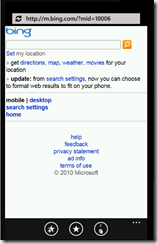
You will want to include the initial slash in your path.  If you don’t, the phone application will open up a mini-browser and attempt to navigate to the specified uri on the web.  For instance, if the NavigateUri above is set to “bing.com”, the mini-browser will come up on the phone and display the following page:

minibrowser

2. Like the Silverlight Button control, HyperlinkButton uses the Content property to set the text for the hyperlink.  Like the Silverlight Button control, anything can be set to the Content.  This means we can use a trick familiar from web development to make an hyperlink look like something else – for instance, an image.

You can create a hyperlink like this:

hyperlink

simply by stacking some controls inside the content of your HyperlinkButton like so:

<HyperlinkButton Name="hyperlinkButton1"  
                    NavigateUri="/MyView.xaml" >
    <Border BorderBrush="White"
            BorderThickness="5"
            Padding="10">
    <StackPanel Orientation="Horizontal">
    <Image Width="60" 
            Source="/phoneapp1;component/Images/appbar.next.rest.png" />
        <TextBlock VerticalAlignment="Center" 
        Text="Go to View.xaml"></TextBlock>
    </StackPanel>
    </Border>
</HyperlinkButton>

3. You can also programmatically navigate between pages.  If your navigation is in the code-behind for a PhoneApplicationPage, you can take advantage of the NavigationService property of your page – which happens to return a System.Windows.Navigation.NavigationService instance.  This service will not only navigate to a page you specify, but will also maintain a history of pages visited in case the end-user decides to use the Windows Phone back button.


    this.NavigationService.Navigate(
        new System.Uri(
            "/MyView.xaml"
            ,System.UriKind.RelativeOrAbsolute)
            );

4.  If your navigation code needs to be placed somewhere other than in the code-behind for a PhoneApplicationPage – for instance in a UserControl – things become slightly more complicated.  In this case, the navigation service can be accessed through the PhoneApplicationFrame, which is the root visual for Windows Phone 7 applications.  The Frame has a Navigate method that calls the same NavigationService object we grabbed previously through the page.  The following example accesses the Frame’s navigation method from a Command on a ViewModel.

private void GoToMyView()
{
    var root = App.Current.RootVisual
        as PhoneApplicationFrame;
    root.Navigate(
        new System.Uri("/MyView.xaml"
        ,System.UriKind.RelativeOrAbsolute)
        );
}
private ICommand _navigationCommand;
public ICommand NavigationCommand{
    get
    {
        if (null == _navigationCommand)
        {
            _navigationCommand = new RelayCommand(GoToMyView);
        }
        return _navigationCommand;
    }
}

5. You can finally just change the source property on the PhoneApplicationFrame in order to navigate to a new page.  This is functionally equivalent to calling the Frame.Navigate method – in fact, changing the source property throws an event that ultimately calls the Frame.Navigate method.  The above code can be rewritten to this functionally equivalent code:

var root = App.Current.RootVisual
    as PhoneApplicationFrame;
root.Source =
    new System.Uri("/MyView.xaml"
    ,System.UriKind.RelativeOrAbsolute);

Thank you Codestock

I greatly enjoyed the Codestock conference this year.  The new venue is definitely a move in the right direction.  Downtown Knoxville is a fantastic area – at least once I got oriented and discovered Market Street.

I mentioned several tools during my Advanced Windows Phone 7 development talk.  Here are the links:

To replace the default Windows Phone image with unlocked WP7 image (build 6176), follow this link:  http://www.multiupload.com/POF771XDFD .  Drop the image into C:\Program Files (x86)\Microsoft SDKs\WindowsPhone\v7.0\Emulation\Images and rename it wm70C1.bin .

For the application bar icons go here: http://www.microsoft.com/downloads/details.aspx?FamilyID=369B20F7-9D30-4CFF-8A1B-F80901B2DA93&displaylang=en

Stephane Crozatier’s implementation of the Pivot Control and Panorama Control (variations on the Hub concept) can be downloaded here: http://phone.codeplex.com/

Laurent Bugnion’s MVVM Lite framework, which includes templates for Windows Phone, is available here: http://mvvmlight.codeplex.com/ 

Be sure to review the Windows Phone UI Design and Interaction Guidelines: http://go.microsoft.com/?linkid=9713252

I also want to point everyone to a fantastic resource for learning Windows Phone Silverlight development I recently discovered.  It is Roberto Brunetti’s blog.  It is in Italian but is nevertheless fairly easy to follow thanks to his excellent use of images and code samples: http://thinkmobile.it/blogs/rob/ .

Natural User Interface and Semiotics

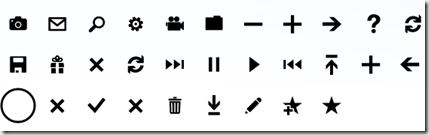
phone7_icons

The icons above are prescribed (promoted?) for Windows Phone 7 development.

When dealing with limited screen real estate, it is important to use what space one has effectively.  One way to accomplish this is to use icons rather than text to cue the user about the functionality of a phone application.

Iconography is intimately tied to the development of what people are calling the Natural User Interface (NUI) which is to be distinguished from the Graphical User Interface (GUI) that has predominated in software devices and PC’s since the mid-90’s.

The main input device for GUI’s has (let us say, in a qualified manner, “always”) been the mouse.  The main input device for NUI’s, on the other hand, is the finger, facilitated by touch sensitive devices and touch recognition software.

(Missing from these moments in the evolution of the software interface is Speech UI, which has never seemed to catch on.  This was the dominant UI foreseen by precogs of the 50’s and 60’s.  In part this may have been due to the fact that SUI is a technology that can easily be described in print sci-fi literature, whereas a NUI interface is less so.  A generation raised up on Star Trek – to which we are indebted for the design of our cell phones as well as the sliding doors at Walmart – thought it was a sure thing.  Strangely it has been largely skipped over at the very time when the processing power of computers and devices makes it plausible.  One possible explanation for this is that it simply took too long to get the hardware up to snuff and another generation of designers – one influenced by Tom Cruise’s The Minority Report rather than Star Trek – came along.  With advances in CGI, NUI is much more compelling than SUI in movies, and discards the print-based underpinnings of speech UI.  Another possibility, however, is that Speech Recognition simply got bogged down by the baggage of AI and the desire not only to make speech interfaces effective but also to give them a personality.)

So what makes a Natural User Interface natural?  For one thing, it removes the input device – whether a mouse or a keyboard – as the intermediary between the user and the device.  It is an unmediated interface.

But is this truly more natural?  Isn’t one of the definitions of humanity that we are tool using creatures.  Our interaction with the world is always mediated by tools that extend our natural capabilities.  We have swords in place of claws, books in place of memory, and wireless keyboard\mouse combinations in place of … what?  Fingers?

Looking at this from a different perspective, one of the criteria for the success of NUI will be that people intuitively understand how to use it.  For this, however, more will be required than simply having touch sensitive devices.  The UI’s created with NUI must also be intuitive.  People must be able to use an application without first reading the manual (which they haven’t done for generations, anyways).

Here we have an opening for a discussion of semiotics.  Semiotics is simply the study of signs.  (Tom Hanks — the other Tom —plays a semiotician in the Dan Brown inspired movies, though he is not called that.)  The study of signs includes language.  It includes codes.  It especially includes icons.

One of the common observations about signs is that they are natural and universal.

One can look at Egyptian hieroglyphics and, even without a Rosetta stone, have a feeling that one understands them.  Smoke always indicates fire.  Red, in the natural world, seems to often indicate danger.  An arrow seems to always draw one’s attention in a certain direction: up, down, left, right.  We intuitively understand why our distant ancestors used signs as a primitive form of writing – the meaning can be culled out of symbols without apparent cultural context.  Symbols (and gestures) can be used to communicate when there is no other common language between people.

One of the remarkable observations discovered by Semiotics as a professional discipline is that there is always a cultural aspect to signs.  Even in using simple signs, two people have to quickly agree, in the moment, on what they mean by apparently obvious glyphs.  Does a yellow light mean “slow down” or “speed up”?  When I point do I mean this item here or the one slightly to its left?  When I laugh, am I laughing with you or at you? 

All meaning is based on agreement.  As Umberto Eco might put it, we know this because we can disagree about meaning.  The definition of a sign, then, is not simply something that stands for something else, but rather something that can be misunderstood.

In designing glyphs for the Windows Phone 7 device, then, we must work with signs that can be misunderstood and are obligated to try to make them univocal in meaning.  This is one reason why the designers of the WP7 platform strongly recommend that everyone use this particular set of icons.  If everyone uses the same glyphs, there is less room for misunderstanding.

The requirement that we all come to a common understanding of what these glyphs represent also opens up the possibility that the meaning of these glyphs will change over time.  There is also the theoretical possibility that these glyphs currently mean nothing at all.  Each glyph is simply an arrangement of pixels.  It will be up to Windows Phone application designers to determine how they should be used.

Paul L. Snyder, a friend on the “Semiotics and Technology” forum, makes the following observations about these signs:

Consider the types of symbols in this collection.  We have:

* Symbols that depict a particular object, with the intent of evoking an association with that object’s primary function (an SLR camera, an envelope, an film-driven movie camera, a file folder, a present, a trash can, a pencil)

* Symbols that suggest a general idea, in the hopes that it can be related to a contextual activity (a minus sign, a plus sign, arrows, a check mark, an ‘X’, a star, a question mark)

* Symbols that rely primarily on already-established conventions outside of the computer realm (play/pause/ff/rewind)

* Composite symbols that try to suggest a more complicated idea (a star with a superimposed ‘+’, arrows pointing to a bar, two curved arrows suggesting a loop

It’s interesting to consider these symbols in light of the theory of ‘icons’ that Umberto Eco critiques in chapter 3 (see p.191, I know we aren’t there yet). Clearly, these icons are striving to be icons in a similar sense, as they are intended to:

* have the same properties as their objects,

* be similar to their objects,

* be analogous to their objects, or

* be motivated by their objects

(though I’m less sure about that last one).  Each of the symbols (with the possible exception of the large circle, for which I can’t guess a probable meaning) is hoping to rely on pre-existing culturally-coded conventions, with lesser or greater degrees of similitude.  By providing a hook that is "similar" to the action that the icon is intended to indicate, the hope is to make it easier for the user to store a mental model of these associations.  In some cases (such as the gear) this may be quite loose.  It’s interesting that several of the icons (movie camera, floppy disk) used depictions of outmoded technology in an attempt to make their meaning clearer.

Perhaps one thing that semiotics can do here is to point us to the culturally coded nature of the associations being used, which can be a starting point for assessing the probably efficacy of the symbol selections (though even so, nothing is a substitute for actual end-user testing).

How to become a Silverlight Expert

steven

I am a Silverlight Expert (And So Can You!).

You may have come across this con before.  You find a short ad in a magazine or a newspaper or a flyer that offers you a secret recipe for making lots and lots of money from your home.  All you have to do is send in $10.

A friend of a friend of a friend of mine actually did this.  The secret recipe is that you create an ad in a magazine or a newspaper or a flyer offering a secret recipe for making lots and lots of money and all people have to do is send you $10.

If you google (or google on Bing) for a Silverlight Expert you are likely to come across this blog entry by Caleb Jenkins: 5 Steps to becoming a Silverlight Expert in which Caleb pretty much explains the secret recipe.  You write a blog post with the words “Silverlight” and “Expert” in it and, wham, bam, there you go.  Instantaneous SEO success.  Put Silverlight Expert in your meta tags (go ahead and check mine now, if you like; I’ll wait) and there you go.  More SEO magic.  Link anchors to other sites that score high for this particular set of keywords is also very effective.

In addition to Caleb, a Silverlight Expert search on the web will likely bring up Erik Mork, Corey Schuman and Shawn Wildermuth.  For the record, they all really are Silverlight experts just as Caleb really is.  Erik and Corey are recognized by Microsoft as Silverlight MVPs and Caleb is an ASP.NET MVP.  Shawn has been an institution in the MVP program for a decade.

Besides saying you are a Silverlight expert, you can also, of course, pay to be a Silverlight expert.  A google search today will lead with three paid spots for Northridge Interactive, Implicit Web and Axmor.  Are they Silverlight experts?  I don’t really know.  All I can say is that paying to be recognized as Silverlight experts doesn’t mean you are not Silverlight experts.

You may have come across this joke before:

Socrates: “To be is to do."

Sartre: "To do is to be."

Sinatra: "Do Be Do Be Do."

I first came across it in a 1985 Luc Besson film called Subway starring Christopher Lambert (of Highlander fame).  It exemplifies, trivializes and then revitalizes an ancient philosophical debate between the man of action and the man of words about what is the best life – that is, a debate between the politician and the philosopher/scientist.

For the politician, words and public speaking are a form of doing – it has a goal, to convince the polis on a course of action.  For the philosopher, action is a form of being.  What we do reveals the sort of person we are – and so we must choose our actions carefully.  Socrates drinks the hemlock because that is the sort of man he is.

Only in modern times have we thrown up a third option for the best life – a life achieved through marketing.  We should give a nod to the German transcendentalists for laying the groundwork for this third way, since they developed and expanded on the concept of “appearing.”

In the world of marketing, “to appear” to be something is “to be” it.  The world is nothing more than a representation, after all — a collective agreement on what we value and what we believe.  Both the speeches of Pericles and the final moments of Socrates in the Apology can now be seen as great marketing moments that were memorable as well as influential.  If we could only go back in time and get a product placement in there somehow.

In a virtual world dominated by marketing, the secret recipe to success seems to be a recognition that “to say” is “to do”.  If you don’t believe me, just check Wikipedia.

If you want to “really” be a Silverlight expert, however, then there just are no shortcuts.  You’ll have to just do it*.

[* “Just do it” was coined by marketing guru Dan Wieden for an extremely successful Nike campaign and is probably copyrighted. According to the film Art & Copy it was inspired by the last words of a death row inmate as he was waiting to be executed.]

Learning to program Windows Phone 7

Scribe

The Windows Phone 7 platform is so new, there is still a dearth of material for learning to program on it.  Pete Brown and Jesse Liberty have opined that if you know Silverlight then you are already a WP7 developer.  This is true up to a point.  If you already know how to program Silverlight or XNA you definitely have a leg up.  But as everyone knows, it’s that last mile that counts.

I’ve previously recommended Charles Petzold’s preview for his upcoming book Programming Windows Phone 7 Series.

It provides a pretty thorough overview of the technology and gives equal air-time to both Silverlight as well as XNA.  Plus Charles Petzold is a pleasure to read.

I would also highly recommend the WP7 Training Kit provided by Channel 9.

The WP7 Training Kit provides code and tutorials that walk you through the basic (and a little bit of advanced) skills you’ll need to start building Silverlight-based WP7 apps.  Mercifully, it goes beyond the Hello World level of Windows Phone 7 tutorial that is currently prevalent on the web.

You should also, of course, hit the Windows Phone forums to see what other people are discovering.  Mark Chamberlain posted a great list of WP7 links on the forum for code samples and code walkthroughs.

If you randomly browse the web for Windows Phone help, I want to warn you in advance of Windows Phone tutorials that turn out to be Silverlight tutorials simply transposed for the phone.  If you see one of these, run.  Run fast.

About

The Imaginative Universal is the blog site of James Ashley.
James is a mild-manered software writer in Atlanta, Georgia and a consultant in emerging technologies like Kinect, Oculus Rift, Hololens, Unity3D and openFrameworks. For several years he was a Presentation Layer Architect at Razorfish.   The views expressed on this blog are James’s alone, and do not reflect the public or private positions of his employer.
James used to run the Silverlight Atlanta User Group.  He was also the lead organizer of ReMIX Atlanta, a code + art conference in Atlanta that ran from 2011 to 2013.
James is a current Microsoft Kinect MVP and a former Client App Dev MVP. He is the author of Beginning Kinect Programming published by Apress.

Contact James by email: jamesashley@imaginativeuniversal.com

His twitter handle is @jamesashley

This site is hosted by OrcsWeb.