WP7 Tip: disabling the Pivot Control swipe gesture

don't try this at home

A common question on WP7 message boards and mailing lists concerns how to cancel a pivot control’s built-in page swiping when you have another control in the pivot that takes swipe gestures: for instance, a Slider!

The standard Microsoft response to these queries is that you shouldn’t do it.  It creates UX confusion and is a “bad practice.”  The assumption is that users don’t think contextually, and will expect swiping to always do the same thing on a page.  This is one of those “sounds good enough” answers, and seems eminently reasonable with respect to a slider control inside a pivot panel.  Besides, you can always just orient your slider vertically, so there is even an out. 

On the other hand, WP7 textboxes use hold-and-swipe to manipulate the cursor in a textbox.  Is it poor UX or a bad practice to use textboxes inside of a pivot control?  Should I try to find a way to orient my textboxes vertically?  What about the Toggle Switch control?

Consider also that swiping is the quintessential phone gesture.  Every new WP7 control in 2011 will attempt to take advantage of it.  It would be a shame if we couldn’t use any of them with the pivot.

This post will address how to do the unspeakable: add a working, horizontally oriented slider to a pivot control.  If you understand how to add a slider to a pivot, you will be able to add any sort of control to a pivot.  For additional takes on this “Don’t Try This At Home” topic you should read Derik Whittaker’s post as well as Miloud B’s post.

In a nutshell, the keys to making this work are to use the IsHitTestVisible property of the pivot control in order to disable swiping.  Then use the static Touch class’s FrameReported event to determine when to re-enable it.

Create a new project in Visual Studio.  If the Pivot control is not available in your toolbox, right click on the toolbox and select “Choose Items…”  Scroll until you find the Pivot and select it.  Open MainPage.xaml in design view.  Drag the Pivot control into the Content grid.  Grab the sizing handles for the Pivot and drag them around until the Pivot fills the Content grid (everything under the Application Title and Page Title textblocks).

Two pivot panels are initially stubbed in for the Pivot control.  Drag a Slider control into the first panel (“item1”).  If you run the application now, you will encounter strange behavior in which the slider bar is successfully moved when you swipe it, but at the same time the pivot panel also attempts to page to a new panel.

swipeme

To fix this, handle your slider control’s ManipulationStarted event and set the pivot’s IsHitTestVisible property to false in order to disable it while the swipe for the Slider is being handled. 

When the swipe is completed, you will need to re-enable the pivot.  You cannot do this on the MouseLeftButtonUp event since this gets disabled on all child controls when you set IsHitTestVisible to false on a container.  Putting it in the ManipulationCompleted event is possible, but results in inconsistent behavior.

Instead, take advantage of the lower level touch API.  Check to see when an up touch gesture occurs over your slider  and set the pivot’s IsHitTestVisible property to true when it does.  This can be hooked up in the page constructor like so:

Touch.FrameReported += (s, e) =>
{
    if (e.GetPrimaryTouchPoint(slider1).Action == TouchAction.Up)
    { 
        pivot1.IsHitTestVisible = true; 
    }
};

Here is the relevant XAML:

<!--ContentPanel - place additional content here-->
<Grid x:Name="ContentPanel" Grid.Row="1" Margin="12,0,12,0">
    <controls:Pivot  HorizontalAlignment="Stretch" Margin="6,6,0,0" 
                        Name="pivot1" Title="pivot" 
                        VerticalAlignment="Top" Height="595">
        <controls:PivotItem Header="item1">
            <Grid>
                <Slider  Height="107" HorizontalAlignment="Left" 
                            Margin="-4,109,0,0" Name="slider1" 
                            VerticalAlignment="Top" Width="460" 
                            SmallChange="1" 
                            Maximum="100" 
                            Value="30" 
            ManipulationStarted="slider1_ManipulationStarted" />
            </Grid>
        </controls:PivotItem>
        <controls:PivotItem Header="item2">
            <Grid />
        </controls:PivotItem>
    </controls:Pivot>
</Grid>

And here is the code-behind:

public MainPage()
{
    InitializeComponent();
    Touch.FrameReported += (s, e) =>
    {
        if (e.GetPrimaryTouchPoint(slider1).Action == TouchAction.Up)
        { 
            pivot1.IsHitTestVisible = true; 
        }
    };
}

private void slider1_ManipulationStarted(object sender
    , ManipulationStartedEventArgs e)
{
    pivot1.IsHitTestVisible = false;
}

The Minority Report Demo You’ve been Waiting For

The Emerging Experiences Team at Razorfish has been working with NUI concepts on MS Surface for several years – and more recently on Windows Phone.  When the Kinect sensor became available we quickly grabbed the hardware and started exploring what could be done with it.  The above demo (coded and filmed by Steve Dawson) uses the Kinect and a physics engine to provide an experience that is Sorcerer’s Apprentice meets Minority Report.  Enjoy!

[Over the weekend we made it onto Endgadget and Gizmodo.]

Re-examining WP7 Launchers and Choosers

One of the questions every developer must face when a new technology like WP7 comes on the scene is whether to jump onboard early (in the CTP and Beta stages) or wait until a platform RTMs.  The advantage of the former is that one has a longer lead time to learn the technology and establish oneself as an authority on the technology inside one’s company or on the web.  The advantage of the latter is that one doesn’t waste time learning things about the technology that are in flux and may go away; instead one can wait for the experts to say what they have to say and learn from that.

A possible advantage to deferring the groking of a new technology is that one also has less to unlearn.  Early adopters often make the mistake of assuming that they do not have to re-examine what they already know when the technology RTMs.  The problem for those who defer learning new technologies is that, if they are not careful, they may inherit the bad information disseminated by those early adopters and insiders, and suddenly we are all stuck in a situation where what counts as common knowledge is simply wrong.

Probably the worst case of this for Windows Phone developers occurred with launchers and choosers.  The original metaphor seemed clear enough: launchers are fire-and-forget components, choosers return information.  This turns out not to be completely true, however.  Save operations, which are considered launchers, must return information about whether each save was successful.  They aren’t really fire-and-forget. 

Another early lesson WP7 developers learned was that all launchers and choosers cause an application to tombstone – and thus was created one of the most obscure and difficult aspects of Windows Phone development.  As WP7 went from Beta to RTM, however, it was decided that this didn’t always make sense.  Recovering from tombstoning is time-consuming.  Why force an app to tombstone for something like the CameraCaptureTask when the user will most likely return to the application immediately after the task is completed?  To find out more about deferred tombstoning, see Why Deactivated is Not the Same as Tombstoning.

Just to make things a little more complicated, it isn’t just the four choosers which turn out to not force tombstoning.  MediaPlayerLauncher, one of the eleven launchers, also implements deferred tombstoning.  The PhoneCallTask also does not throw an application into tombstoning mode (additionally, it also never seems to trigger the Deactivated event).  Incoming phone calls, outgoing phone calls, the five choosers and MediaPlayerLauncher all merely suspend (or pause) the application, keeping all the pages along with their state in memory.

If you are confused, welcome to the club.  The original metaphor of having launchers and choosers broke down bit by bit through subsequent iterations of the Windows Phone platform.  Experts quote each other based on these different iterations.  After a while, no one is sure anymore exactly how launchers and choosers work.

The solution, naturally, is to trust but verify everything you read.  You can find out whether an application is actually tombstoned when a task (the generic name for both launchers and choosers) is initiated by placing a simple debug message in the constructor of the page that launches the task.  If the constructor is called when you press back from the task, then your application was tombstoned.  If the constructor is not called, then you know the page has been retained in memory and tombstoning did not occur.

Once you have verified something like this, always write it down somewhere.  Here’s the chart I keep for myself to help remember the behavior of various launchers and choosers.  It is for the RTM version of Windows Phone only.  Please take it with a grain of salt.

Task

Launcher

Chooser

Returns Data

Defers Tombstoning

Suspends Application

CameraCaptureTask


X

X

X

X

EmailAddressChooserTask


X

X

X

X

EmailComposeTask

X


MarketplaceDetailTask

X


MarketplaceHubTask

X


MarketplaceReviewTask

X


MarketplaceSearchTask

X


MediaPlayerLauncher

X


X

X

PhoneCallTask

X


X

PhoneNumberChooserTask


X

X

X

X

PhotoChooserTask


X

X

X

X

SaveEmailAddressTask

X


X


SavePhoneNumberTask


X


SearchTask

X


SmsComposeTask

X


WebBrowserTask

X


I’m joining Razorfish

I am now an employee of a digital powerhouse called Razorfish.  I’m very excited about this.  Whereas before I wrote applications, I am now writing “experiences” – which is a hipster way of saying that I get to apply all of my experience writing LOB applications in WPF and Silverlight to making cool UX (my private vice is now my fulltime job).

I’m actually working for a team within Razorfish called the Emerging Experiences Group which does cutting edge development with Microsoft Surface, Windows Phone, augmented reality and other neat toys.  If you have seen the recent WP7 launch (or happened to be in Barcelona when the phone was announced) you will have noticed the EE’s work even if you didn’t know who they are – EE wrote the “BAP”: the giant windows phone display used to demonstrate how Windows Phone works back when there were very few devices to hand out to people.

My first incredibly cool week as a Presentation Layer Architect in the Emerging Experiences Group was taken up with helping to build an application experience to be debuted at the 2010 Wired Store: http://www.wired.com/about/2010/11/wired-brings-the-best-of-what%E2%80%99s-next-to-new-york-city-experiential-gallery-open-for-the-holidays-in-noho-shopping-district/ 

You can check out more work by Razorfish’s Emerging Experiences Group here: http://emergingexperiences.com/portfolio/

Anonymity, Identity and my XBox gamer tag

squarepeg

This a postmodern title for a silly problem.  I am trying to consolidate my XBox gamer tag, my Zune Pass tag, and the different Windows Live IDs I use for these tags with the Live ID I use for my Windows Phone 7 and my WP7 marketplace account.  After half an hour on the phone with XBox support, I’m not sure if I’ve gotten any closer to pulling myself together.

The nature of online identities has changed over the past several years.  It used to be that it was a great idea to use anonymous handles online.  The persona one used online to criticize Apple or Microsoft or the US government could hypothetically never be traced back to the real you.  It was even a good idea to have multiple anonymous online handles.  One would use various bogus email accounts to track junk mail, other ones to deal with the mortgage, another one to deal with the bank. 

I was the circus master to an army of anonymous online daemons sent out to do my virtual bidding.

But things changed.  It turns out that the web isn’t just a place to make a nuisance of oneself; it is also a place to garner and horde rewards.  Tying the handle I use to make Amazon book recommendations with the one I use on MSDN forums with the one I use on my blog suddenly started seeming like a great idea, and so three years ago or so I started using my real name for everything.  This was a matter of vanity, of course.

More recently, it has become a matter of necessity.  I have about ten different Live IDs and I am trying to consolidate them all with my open id, facebook account, Blogger account, twitter account, etc.  Microsoft has started tying the Zune Pass to Windows Phone and XBox.  This is all great stuff – but only if all the IDs for these various services are consolidated.

When I got my Zune Pass, I was required to create a Zune tag and associate it with a Live ID.  My XBox gold membership is also associated with a Live ID and gamer tag.  Unfortunately, these are different IDs.  Zune will let me switch gamer tags, but only if the one I want to switch to doesn’t already exist.  XBox will let me associate my gamer tag with a different Live ID, but only if that Live ID doesn’t have a different gamer tag associated with it. 

Just to make things a little clearer, I’ll provide some names.  My XBox tag is DHTMLKing (I thought that particular Microsoft technology would take off back in the day) tied to my Live ID hotsweats@hotmail.com (a long story).  My Zune Pass moniker is fightclubber3xY tied to my Live ID XamlMarkHamill@hotmail.com (this all became very confusing when I was on the phone with XBox support).  My WP7 Marketplace account is fortunately tied to XamlMarkHamill also.  XamlMarkHamill is the Live ID I want everything associated with, but I want to keep my achievements associated with DHTMLKing and my plays and recommendations associated with fightclubber3xY.  Simple enough.

On the XBox console I can change the Live ID associated with DHTMLKing (yay) but not to a Live ID that is already associated with another Zune / XBox tag (boo).  On the Zune website I can change gamer tags (yay) but not if that gamer tag already exists (boo).  And on Zune for the XBox, I can create a new Zune Pass if I don’t already have one associated with my gamer tag / Live ID but I cannot simply associate my Gold membership with a pre-existing Zune Pass account (boo).  I can link my various Live IDs on http://account.live.com (yay) but this doesn’t really let these IDs know anything about each other – it just provides a link so I can switch between Live IDs more easily (meh).

I was told by the very patient XBox support representative to recover the Zune Pass gamer tag on the XBox (since it only exists on the xbox.com website but has never resided on my game console) and then try to associate that gamer tag with a new Live ID – but I remembered reading something on Yahoo Answers indicating that doing this would also move my Zune Pass associated with that bogus gamer tag to the new Live ID also, which would be self-defeating.

So we went with plan B – I deleted the gamer tag I had just recovered (the second bogus fightclubber3xY one, that is), with the idea that if I could just get rid of that tag, I would finally be able to transfer my good gamer tag to the Live ID I would be freeing up.  Unfortunately deleting the gamer tag I had just recovered doesn’t delete it from the Microsoft databases, it turns out.  It just possibly makes it dormant. 

I’m going to wait 24 hours in the hopes that 24 hours of dormant activity will kill that account.  I’m really not sure.  I think I have to stay away from the Live ID associated with that gamer tag and which I use for forums and my Zune Pass for 24 hours also.  I’ll call XBox support back tomorrow and see if any of this worked.  As far as I know, XBox gamer tags are supposed to be perpetual and are as hard to kill off as Jason Voorhees.

I really don’t want to dump on Microsoft.  It’s been a rough year with the off kilter rumors of WPF being dead and then Silverlight being dead and anxiety about whether the Windows Phone and Kinect will take off as well as they need to. 

But I’m really all in with Microsoft.  I develop on Microsoft technology and they have been very good to me over the past fourteen years helping me to pay my mortgage and clothe my children as a Microsoft-centric developer.  I’m also all in as a consumer with a Zune HD, an XBox, an XBox 360 which won’t play most of the games I bought for the XBox, a Windows Mobile device, a Windows Phone (delightful is the only word I can use to describe it under my NDA with Microsoft) and most recently a Kinect sensor (pure UX sweetness).  Microsoft has been amazing with innovation in the past year and even preparing for HTML 5 seems like a good move to me – change is the only constant … blah, blah, vampire emergency, blah … and developers really need to adapt to the market, after all.

I just wish the stuff that should be easy were easier.  Maybe linking large systems like the Zune and the XBox on the back-end isn’t as straightforward as changing a foreign key on this database table in the cloud or adding an index table between those databases in the cloud.  And Microsoft divisions do tend to be balkanized, even if they all ultimately answer to the same man.

I was really hoping for a person on the phone who could press a button and get all my online identities un-balkanized, though.  I feel like my Zune hand and my XBox hand won’t talk to each other and this is causing an identity crisis for us – for me, I mean.


[Update 11/7/2010 – I called XBox support back today after waiting the requisite 24 hours and it turns out that my vestigial gamer tag cannot be deleted.  Also, there is no way to merge the different accounts right now.  This is actually progress since the XBox rep knew right away that it can’t be done.  It’s a known problem!  Admitting you have a problem is, of course, the first step towards curing it so I have high hopes. 

No timeline on when a solution will be available, but apparently lots of people are asking about how to merge their accounts now that Microsoft is encouraging them to use unified Live IDs, XBox gamer tags and Zune passes.]

Telerik RadControls for Windows Phone: First Look

Telerik has been quick to fill in some of the gaps in Windows Phone development with the new RadControls for Windows Phone.  They made a similar move previously with their support for ASP.NET MVC and, going back even further, jumped in earlier than most control suite developers when Silverlight first came out.  Jumping onto new technologies in this is always a risky proposition – and I am grateful to Telerik for repeatedly doing this.  I truly hope it pays off for them.

While the Windows Phone platform was still in CTP and Beta, the main course for extending the control library was to incorporate open and proprietary projects such as the Silverlight 3 Toolkit, Silverlight 3 SDK, and Silverlight Contrib.  This usually worked but there were always issues with making everything play smoothly. 

As the marketplace rules were released, it also became evident that all controls would have to be compiled against the WP7 runtime, which made things just slightly hairier.  Eventually Microsoft released its own official Silverlight Toolkit for Windows Phone, which provides the most requested UI components: a Pivot Control, Panorama Control and Date and Time Pickers which are consistent with the other native apps built for the phone.

The RadControls for Windows Phone has some overlap with the Silverlight Toolkit for WP7 – no doubt due to fluctuating expectations about what actually would be provided in the Microsoft Toolkit and what would be most useful in a suite.  Duplications include the Date and Time Pickers, Picker, and the Wrap Panel.

The UniformGrid, DockPanel, and Window controls are found in RadControls but not in the Toolkit.  Window is probably one of the most useful of these controls.  It has functionality similar to the ChildWindow control from the Silverlight 3 SDK and allows us to build modal windows – very useful when a MessageBox will not suffice and especially when a phone application requires an initial login – the tales of woe surrounding building an initial login that complies with the Marketplace rules are legendary.  Telerik also continues a tradition of porting nice-to-have WPF functionality to Silverlight.  The standout in their phone suite is the LayoutTransform control which allows us to use Layout Transforms instead of just Render Transforms (for an illustrative example of the difference, see Charles Petzold’s blog entry).

For those having trouble with page transitions, Telerik provides assistance with their implementation of the PhoneApplicationFrame.  There has been a technique going around the internet involving cannibalizing the Silverlight 3 Toolkit and customizing the default PhoneApplicationFrame in order to set all page transitions from one location.  Telerik has simplified the process by providing their own implementation.

The RadControls are still in Beta and I know better than to judge the final work by any issues I find in the preview.  That said, the RadControls for Windows Phone examples seem remarkably and pleasantly performant – especially the page transitions. 

Telerik’s RadControls for Windows Phone are a great addition to the Windows Phone ecosystem.  Telerik is definitely on the right track and their controls provide what any Phone developer would want – an easier way to build interesting and attractive WP7 applications with tools to make development go faster.

Why Deactivated is not the same as Tombstoned

With the transition from the Beta WP7 Dev tools to the RTM, an important and subtle change was introduced to the way launchers and choosers work.  In the beta, it was a given that every time we launched a launcher or chooser from Silverlight, the current application would be tombstoned and the Deactivated event would be thrown on the current PhoneApplicationService object.

With the RTM tools, this is no longer always the case.  Five tasks break this rule: CameraCaptureTask, EmailAddressChooserTask, MediaPlayerLauncher, PhoneNumberChooserTask and PhotoChooserTask.  In each case, while the application may be tombstoned, it also may not be.  In fact, most of the time, it will simply be paused and no tombstoning will occur – the application will not be terminated.  

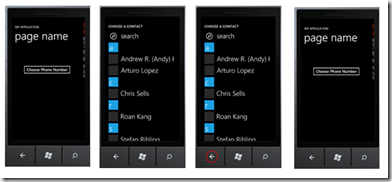
We can assume that the typical workflow for a chooser task is the following (the images below demonstrate the PhoneChooserTask in action):

phonechooserback

A user performs an action that initiates a task.  The task window opens. The user either completes the task (in this case by selecting a contact) or presses the Back button to cancel the action.  The user is returned to the previous page.  In this case, it makes sense that no termination occurs.  Instead, the app is left in a Paused state much as an app is paused during incoming and outgoing calls – timers are suspended, no events are handled.

[Note: in the RTM, no event is fired when an application goes into a paused state.  At best, you can handle RootFrame.Obscured and RootFrame.Unobscured for incoming and outgoing calls.]

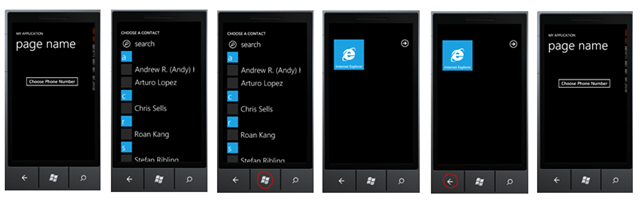
However, the user may also decide to press the Start button at the third step.   At that point it makes sense for termination to occur as it is less likely that the user will backpress back to the app.phonenumberchooser

So when should we handle the deactivated event for the second case where the user moves on and doesn’t complete a chooser task?  We actually can’t handle it when tombstoning occurs because our app is paused and will not respond to any events.

Instead, the PhoneNavigationService.Deactivated event is fired when chooser task (or MediaPlayerTask) is initiated.  This despite the fact that we don’t know (and can’t know) at this point whether the app will actually be tombstoned.

So far so good.  We may unnecessarily be writing objects to storage if the app isn’t ever tombstoned, but it’s better to be safe than sorry.

What is peculiar is that when we return to the app – either through the first scenario above or through the second deviant scenario – PhoneNavigationService.Activated is always thrown.  There’s a symmetry to this.  If the Deactivated event is called and we back into the application, then the Activated event will be called. 

The somewhat annoying thing is that the PhoneApplicationService should have enough information to avoid firing false Activated events unnecessarily.

No matter.  There is a simple trick for finding out whether an Activated event is real or fake – whether it truly follows a tombstoning of the application or is simply thrown because Deactivated was previously called.

Use a flag to find out if the App class was newed up.  It only gets newed up in two situations – when the application is first launched and when it is recovering from tombstoning.  Set the flag to false after the App class has finished loading.  If a chooser is launched and the application is paused but not tombstoned, the flag will still be false.  If tombstoning occurs, the flag will be reset to true.

private bool _isNewApp = true;

private void Application_Launching(object sender
    , LaunchingEventArgs e)
{
    _isNewApp = false;
}

private void Application_Activated(object sender
    , ActivatedEventArgs e)
{
    if (_isNewApp == true)
    {
        // a real tombstone event occurred
        // restore state
    }
    _isNewApp = false;
}

If you are handling tombstoning at the page level, you can similarly use a flag to determine whether the page was re-newed or not.

bool _isNewPage = true;

public MainPage()
{
    InitializeComponent();
}

protected override void OnNavigatedTo(NavigationEventArgs e)
{
    if (_isNewPage)
    {
        //restore state
    }
    _isNewPage = false;
}

The important thing to remember, though, is that the Deactivated / Activated events are not synonymous with tombstoning.  They simply occur alongside of tombstoning – and in the special cases described above occur when no tombstoning happens at all.

Back-Chaining in WP7

Customizing App.xaml.cs

The Windows Phone 7 navigation system has certain limitations from a development perspective.  Chief among these are an inability to inspect the navigation backstack, an inability to remove items from the backstack, and an inability to navigate multiple pages on the backstack.

Because we are only able to programmatically back-navigate one page at a time, a technique has been devised in the developer community called back-chaining.  Back-chaining simply involves setting certain flags in your pages so that, if anyone ever backs into the page, it will continue to navigate backwards.  In this way, we can chain several back navigations together until we arrive at the page we want to stop at.

Here is a basic implementation that forces any back-navigation to always return to the first page in an application when this code is placed in every PhoneApplicationPage:

bool done;

protected override void OnNavigatedTo(
        NavigationEventArgs e)
{
    if (done && NavigationService.CanGoBack)
        NavigationService.GoBack();
}

protected override void OnNavigatedFrom(
    System.Windows.Navigation.NavigationEventArgs e)
{
    done = true;
}

Instead of repeating this code in every page, however, we can centralize it in the App class.  Additionally, we can provide extra methods for more complex navigation such as going back a certain number of pages or going back to a particular page wherever it is on the backstack.

We can do all of this from the App class because of an event on the PhoneApplicationFrame called Navigated that allows us to centrally hook into every navigation event in our applications.

In the default Windows Phone Application template, the PhoneApplicationFrame is instantiated in the App.InitializePhoneApplication method in the App.xaml.cs file.  We can declare our new handler for the event somewhere in there:

//boilerplate code
RootFrame.Navigated += CompleteInitializePhoneApplication;
//new code
RootFrame.Navigated += RootFrame_Navigated;

Next, we need to create some infrastructure code.  For convenience, we want to use static methods and properties in order to make our methods accessible off of the App class.  App.Current, which can be called from anywhere in your application, will return an Application type, which is the base class for App.  Consequently, to access the App class’s RootFrame property (which is boilerplate if you use one of the default project templates), you have to write code like this:

var rootFrame = ((App)App.Current).RootFrame;

A static member of the App class, on the other hand, can conveniently be called like this:

App.DoSomething();

Because we are spreading logic between several page navigations and consequently several calls to RootFrame_Navigated, our infrastructure will need to keep track of what we are trying to accomplish between all of these navigations.

The current implementation will include five methods for back navigation, a simple GoBack, GoBack for a number of pages, GoBack to a named page, GoBack to the first page, and GoBack past the first page.  The last is equivalent to exiting the application (it also doesn’t work, by the way, and I’ll talk more about that later).

Here is the implementation for the first back navigation — which is simply a standard one page back navigation placed in a more convenient place – as well as a property to expose CanGoBack:

public static void GoBack(string pageName)
{
    CurrentMode = GoBackMode.BackToPage;
    BackPageStop = pageName;
    GoBack();
}

private static bool CanGoBack
{
    get
    {
        var navFrame = App.Current.RootVisual
            as PhoneApplicationFrame;
        return navFrame.CanGoBack;
    }
}

GoBack can now be called from anywhere in a Silverlight application like this:

App.GoBack();

Our infrastructure code also requires an enum to keep track of these navigation types:

private enum GoBackMode
{
    Default = 0,
    BackNumberOfPages,
    BackToPage,
    Home,
    Quit
}

private static GoBackMode CurrentMode 
{ get; set; }

To implement going back a given number of pages, we will create a static property to track how many pages we need to go back and expose a method to start the GoBack chain:

private static int GoBackPageCount
{ get; set;}

public static void GoBack(int numberOfPages)
{
    CurrentMode = GoBackMode.BackNumberOfPages;
    GoBackPageCount = numberOfPages;
    GoBack();
}

The magic is what happens in the RootFrame_Navigated method, which is triggered every time we arrive at a new page in the application.  We check to see how many pages we have traversed through the backstack.  If we have gone far enough, we stop.  If not, we call App.GoBack():

static void RootFrame_Navigated(object sender
    , NavigationEventArgs e)
{
    switch (CurrentMode)
    {
        case GoBackMode.BackNumberOfPages:
            if (CanGoBack && --GoBackPageCount > 0)
            {
                GoBack();
            }
            else
                CurrentMode = GoBackMode.Default;
            break;

The setup code for going back to a named page tracks the targeted page name rather than the number of pages traversed:

private static string BackPageStop
{ get; set;}
public static void GoBack(string pageName)
{
    CurrentMode = GoBackMode.BackToPage;
    BackPageStop = pageName;
    GoBack();
}

The code fragment in the switch statement in RootFrame_Navigated parses the name of the page we have arrived at (e.Content returns the full class name along with its namespace but does not return the “.xaml” extension) and then compares it against the page we are trying to reach:

case GoBackMode.BackToPage:
    var pageName = e.Content.ToString();
    var periodPosition = pageName.LastIndexOf(".");
    if (periodPosition > -1)
        pageName = pageName.Substring(periodPosition + 1);
    if (CanGoBack && pageName != BackPageStop)
        GoBack();
    else
        CurrentMode = GoBackMode.Default;
    break;

The syntax for returning to MyPhoneApplication.Page1.xaml looks like this:

    App.GoBack("Page1");

If there are multiple instances of Page1 on the backstack, this implementation will stop at the last one.  If Page1 does not exist on the backstack, the routine will not stop until it finds the first page of the application.

GoHome is fairly straightforward.  It continues stepping backwards until the CanGoBack property returns false.  CanGoBack returns false on the first page of the application but returns true for every other page:

public static void GoHome()
{
    CurrentMode = GoBackMode.Home;
    GoBack();
}
    case GoBackMode.Home:
        if (CanGoBack)
            GoBack();
        else
            CurrentMode = GoBackMode.Default;
        break;

Finally, it would be really nice to be able to implement a Quit method.  Hypothetically, we could just navigate past the first page of an application to exit.  Taking advantage of the infrastructure we have written, the code would look like this:

public static void Quit()
{
    CurrentMode = GoBackMode.Quit;
    GoBack();
}
    case GoBackMode.Quit:
        GoBack();
        break;

Sadly, however, this doesn’t work. We cannot programmatically back navigate past the first page of an application.  When we try, the navigation is automatically cancelled and a NavigationFailed error is thrown. 

Since back-chaining as an exit strategy does not work, an alternative way to exit a Silverlight application is outlined here: How to Quit a WP7 Silverlight Application .  Unfortunately, the marketplace guidelines say that an application cannot have unhandled exceptions.  I’m not currently clear on whether this would apply to throwing an exception that is understood an controlled (hence handled) but at the same time intentional.

A word of caution:  Back-chaining causes flickering, and the more pages you navigate through, the worse the flickering gets.  This is because every page tries to display itself as you navigate past it.   A quick fix for the flickering problem is to set the RootFrame’s Opacity property to zero when you begin and complex back navigation and then set it back to one when you complete the navigation [thanks go to Richard Woo for pointing this out to me.]

For copy/paste convenience, here is the entire back-chaining code base:

RootFrame.Navigated += RootFrame_Navigated;
#region go back methods

private enum GoBackMode
{
    Default = 0,
    BackNumberOfPages,
    BackToPage,
    Home,
    Quit
}

private static GoBackMode CurrentMode 
{ get; set; }

public static void GoBack()
{
    var navFrame = App.Current.RootVisual
        as PhoneApplicationFrame;
    navFrame.GoBack();
}

private static void ShowRootFrame(bool show)
{
    var navFrame = App.Current.RootVisual
        as PhoneApplicationFrame;
    if (show)
        navFrame.Opacity = 1;
    else
        navFrame.Opacity = 0;
}

private static int GoBackPageCount
{ get; set;}

public static void GoBack(int numberOfPages)
{
    CurrentMode = GoBackMode.BackNumberOfPages;
    GoBackPageCount = numberOfPages;
    ShowRootFrame(false);
    GoBack();
}

private static string BackPageStop
{
    get;
    set;
}
public static void GoBack(string pageName)
{
    CurrentMode = GoBackMode.BackToPage;
    BackPageStop = pageName;
    ShowRootFrame(false);
    GoBack();
}

private static bool CanGoBack
{
    get
    {
        var navFrame = App.Current.RootVisual
            as PhoneApplicationFrame;
        return navFrame.CanGoBack;
    }
}

public static void GoHome()
{
    CurrentMode = GoBackMode.Home;
    ShowRootFrame(false);
    GoBack();
}

public static void Quit()
{
    CurrentMode = GoBackMode.Quit;
    ShowRootFrame(false);
    GoBack();
}

static void RootFrame_Navigated(object sender
    , NavigationEventArgs e)
{
switch (CurrentMode)
{
    case GoBackMode.BackNumberOfPages:
        if (--GoBackPageCount > 0 && CanGoBack)
        {
            GoBack();
        }
        else
        {
            ShowRootFrame(true);
            CurrentMode = GoBackMode.Default;
        }
        break;
    
    case GoBackMode.Home:
        if (CanGoBack)
            GoBack();
        else
        {
            ShowRootFrame(true);
            CurrentMode = GoBackMode.Default;
        }
    break;
    case GoBackMode.BackToPage:
        var pageName = e.Content.ToString();
        var periodPosition = pageName.LastIndexOf(".");
        if (periodPosition > -1)
            pageName = pageName.Substring(periodPosition + 1);
        if (CanGoBack && pageName != BackPageStop)
            GoBack();
        else
        {
            ShowRootFrame(true);
            CurrentMode = GoBackMode.Default;
        }
        break;
    case GoBackMode.Quit:
        GoBack();
        break;

    }
}

#endregion


20, 50, 90, 400 and 2

the-count

There are certain numbers every Windows Phone developer should be familiar with: 20, 50, 90, 400, and 2.

20 MB is the maximum size of a XAP file that can be downloaded over the air.  XAPs larger than this must use Wi-Fi or the Zune desktop app to be downloaded to a device.

50 MB is the maximum size of additional content that can be downloaded after installation to make the application functional.  If more than 50 MB is needed to make the application functional, this must be noted in the marketplace submission and a notification should be provided to the end-user of the fact.

90 MB is the memory usage limit for your app assuming the device has the min-spec 256 MB of RAM.  Of course, another way to look at this is that Windows Phone 7 reserves 166 MB of RAM for itself – your app can use the rest.  If the device has 512 MB of RAM, then your app gets 256 + 90.

400 MB is the max allowable size for your XAP. 

2 Gigs is the total size your app can grow to.  This includes the XAP as well as any data you throw into isolated storage — though some people have proposed that the 2 Gig limit applies only to isolated storage usage.  (If you check the isolated storage quota programmatically, it appears to be unlimited which, obviously, isn’t the case). 

The 2 Gig limit seems to have been lifted.  To read more about this, see the old MSDN forums.

Just another ViewModelBase class

Great developers like Laurent Bugnion, Rob Eisenberg and Rocky Lhotka write Frameworks.

At the opposite end of the spectrum are developers like me.  I write helper classes.  Usually I don’t even do that and simply resort to copy and pasting from text files I have saved all over my harddrive.

In the zip file you will find a ViewModel base class designed specifically for doing MVVM in a Windows Phone Silverlight application.  It can be used with either the Satellite VM pattern or the Anchor VM pattern as described in the Patterns of Windows Phone Architecture series.  It supports Blendability, State persistence, Tombstoning and Xaml-only instantiation.

Also included are the helper classes for saving state described in this post.

Basic usage looks like this:

public class MainViewModel: 
    SerializableViewModelBase<MainViewModel>{}

All the features mentioned above come free simply by inheriting the base class.  Add a property, rinse, repeat.

And here’s the implementation below.  The code in the base constructor takes the currently newed up instance and throws it into the static instance. 

You’ll also note that unlike a typical Singleton implementation, the instance property is not static.  This allows XAML instantiation to work properly.  A protected Singleton property is provided if you want the Instance property to be static in the derived class.  To implement a static Instance property in the derived class, just add one with the new qualifier like this:

public static new MainViewModel Instance
{
    get { return Singleton; }
}

BackupMore and RestoreMore can be overridden to save additional state data that might not get serialized with the ViewModel but belongs with it nonetheless (for instance, private fields that need to be saved off).

InitializeDesigner and InitializeInstance can be overriden to perform any initialization logic.  Since with XAML instantiation using a static Instance can create your object more than once, the base class is written so these two methods are only called on the first instantiation of the singleton.  Additionally, they automatically perform forking logic for instantiation code running in the designer versus instantiation code at runtime.

Your comments and advice are, as always, welcome.

public abstract class SerializableViewModelBase<T>
    : INotifyPropertyChanged
    where T : SerializableViewModelBase<T>, new()
{

    private static T _instance;
    private static object _lockObject = new object();

    /// <summary>
    /// Initializes a new instance of 
    /// the <see cref="SerializableViewModelBase&lt;T&gt;"/> 
    /// class.
    /// </summary>
    public SerializableViewModelBase()
    {
        lock (_lockObject)
        {
            if (IsInstanceEmpty)
            {
                _instance = (T)this;
                Initialize();
            }
        }
    }

    /// <summary>
    /// Gets a value indicating whether 
    /// the singleton instance T is empty.
    /// </summary>
    /// <value>
    ///     <c>true</c> if this instance is empty;
    ///     otherwise, <c>false</c>.
    /// </value>
    protected static bool IsInstanceEmpty
    {
        get { return _instance == null; }
    }

    /// <summary>
    /// Override to perform runtime intialization.
    /// </summary>
    virtual protected void InitializeInstance() { }
    /// <summary>
    /// Override to perform initialization for 
    /// the designer.
    /// </summary>
    virtual protected void InitializeDesigner() { }

    private void Initialize()
    {
        if (DesignerProperties.IsInDesignTool)
            InitializeDesigner();
        else
            InitializeInstance();
    }

    /// <summary>
    /// Gets the singleton instance of type T.
    /// </summary>
    /// <value>The instance.</value>
    protected static T Singleton
    {
        get
        {
            lock (_lockObject)
            {
                if (IsInstanceEmpty)
                    new T();
            }
            return _instance;
        }
    }

    /// <summary>
    /// Gets the singleton instance of type T.
    /// </summary>
    /// <value>The instance.</value>
    public T Instance
    {
        get
        {
            return Singleton;
        }
    }

    private string _title;
    /// <summary>
    /// Gets or sets the Title.
    /// </summary>
    /// <value>The title.</value>
    public string Title
    {
        get { return _title; }
        set
        {
            _title = value;
            OnPropertyChanged("Title");
        }
    }

    /// <summary>
    /// Occurs when a property value changes.
    /// </summary>
    public event PropertyChangedEventHandler PropertyChanged;

    protected void OnPropertyChanged(string propertyName)
    {
        if (null != PropertyChanged)
            PropertyChanged(this
            , new PropertyChangedEventArgs(propertyName));
    }

    /// <summary>
    /// Backs up the class instance.
    /// </summary>
    /// <param name="store">The data store.</param>
    /// <returns></returns>
    public static bool Backup(IDataStorage store)
    {
        _instance.BackupMore(store);
        return store.Backup(typeof(T).Name, _instance);
    }

    /// <summary>
    /// Restores the class instance.
    /// </summary>
    /// <param name="store">The data store.</param>
    public static void Restore(IDataStorage store)
    {
        _instance = store.Restore<T>(typeof(T).Name);
        _instance.RestoreMore(store);
    }

    /// <summary>
    /// Override this method to backup additional state.
    /// </summary>
    /// <param name="store">The store.</param>
    protected virtual void BackupMore(IDataStorage store) { }

    /// <summary>
    /// Override this method to restore additional state.
    /// </summary>
    /// <param name="store">The store.</param>
    protected virtual void RestoreMore(IDataStorage store) { }
}