Got an Image Enhancer that can Bitmap?

Every UI platform needs a killer concept.  For the keyboard and mouse it was the Excel sheet.  If you ever watch the rebooted Hawaii Five-0, you’ll realize that for Touch it’s the flick.  Flicking is more satisfying than tapping on sooo many levels.  Birds do it, bees do it, even monkeys in the trees do it.

Gestural interfaces haven’t found that killer concept yet, but it may just be the ability to zoom in on an image.  Like flicking and entering tabular data, killer concepts don’t necessarily have to be clever.  They just have to feel right.

Consider what John Anderton spent his time doing in 2002’s Minority Report.  For the most part, he used innovative fantasy technology (later made real at Oblong Industries) to enhance images on his rather large screen.

Go back even further and you’ll recall Rick Deckard used speech recognition to enhance an image in 1982’s Blade Runner.  This may be the first inkling any of us had of the true purpose of NUI.

It obviously left an impression on the zeitgeist because every movie or TV show attempting to demonstrate technological sophistication on the cheap (CSI being the biggest culprit) managed to insert an “enhance” scene into their franchise somewhere.

And if you happened to have a movie with no budget, there was no reason you should let this stop you.

And while we’re getting nonstalgic for NUI, let’s not forget to give credit where credit is due. Before Leap Motion, before Microsoft’s Kinect, before Oblong’s g-speak, even before Minority Report, there was the NES Power Glove:

And in the decades after, all we’ve managed to do is to enhance that killer concept.

What’s In Kinect for Windows SDK 1.5?

You shouldn't have come back, Flynn.

Microsoft has just published the next release of the Kinect SDK: http://www.microsoft.com/en-us/kinectforwindows/develop/developer-downloads.aspx  Be sure to install both the SDK and the Toolkit.

This release is backwards compatible with the 1.0 release of the SDK.  This is important, because it means that you will not have to recompile applications you have already written with the Kinect SDK 1.0.  They will continue to work as is.  Even better, you can install 1.5 right over 1.0 – the install we take care of everything and you don’t have to go through the messy process of tracking down and removing all the components of the previous install.

I do recommend upgrading your applications to 1.5 if you are able, however.  There are improvements to tracking as well as the depth and color data.

Additionally, several things developers asked for following the initial release have been added.  Near-mode, which allows the sensor to work as close as 40cm, now also supports skeleton tracking (previously it did not). 

Partial Skeleton Tracking is now also supported.  While full body tracking made sense for XBox games, it made less sense when people were sitting in front of their computer or even simply in a crowded room.  With the 1.5 SDK, applications can be configured to ignore everything below the waist and just track the top ten skeleton joints.  This is also known as seated skeleton tracking.

Kinect Studio has been added to the toolkit.  If you have been working with the Kinect on a regular basis, you have probably developed several workplace traumas never dreamed of by OSHA as you tested your applications by gesticulating wildly in the middle of your co-workers.  Kinect Studio allows you to record color, depth and skeleton data from an application and save it off.  Later, after making necessary tweaks to your app, you can simply play it back.  Best of all, the channel between your app and Kinect Studio is transparent.  You do not have to implement any special code in your application to get record and play-back to work.  They just do!  Currently Kinect Studio does not record voice – but we’ll see what happens in the future.

Besides partial skeleton tracking, skeleton tracking now also provides rotation information.  A big complaint with the initial SDK release was that there was no way to find out if a player/user is turning his head.  Now you can – along with lots of other tossing and turning: think Kinect Twister.

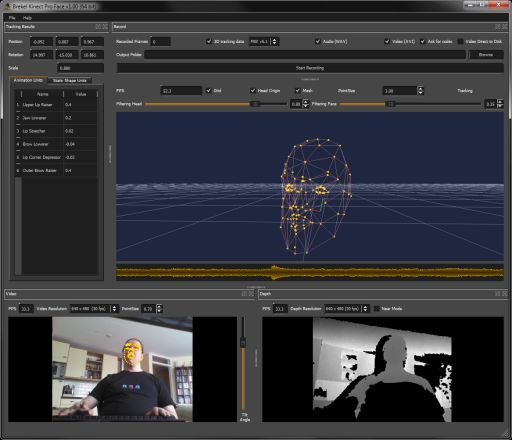
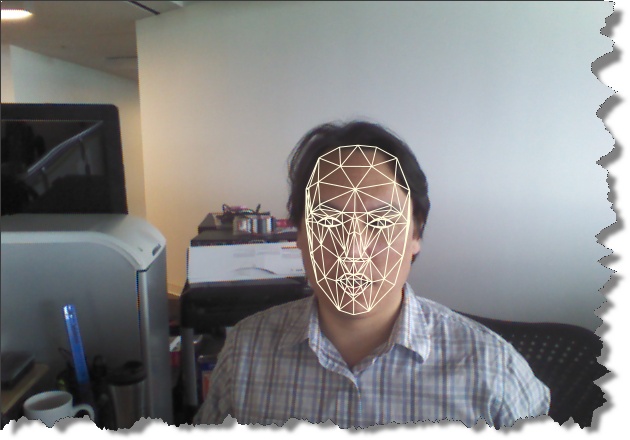
Those are things developers asked for.  In the SDK 1.5 release, however, we also get several things no one was expecting.  The Face Tracking Library (part of the toolkit) allows devs to track 87 distinct points on the face.  Additional data is provided indication the location of the eyes, the vertices of a square around a player’s face (I used to jump through hoops with OpenCV to do this), as well as face gesture scalars that tell you things like whether the lower lip is curved upwards or downwards (and consequently whether a player is smiling or frowning).  Unlike libraries such as OpenCV (in case you were wondering), the face tracking library is using rgb as well as depth and skeleton data to perform its analysis.

I fight for the Users!

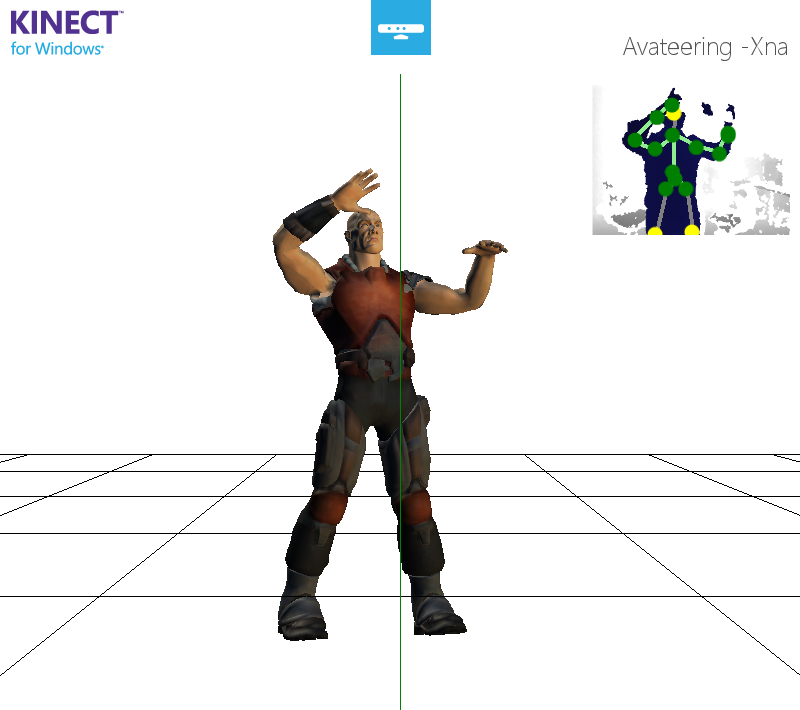
The other cool thing we get this go-around is a sample application called Avateering that demonstrates how to use the Kinect SDK 1.5 to animate a 3D Model generated by tools like Maya or Blender.  The obvious way to use this, though, would be in common motion capture scenarios.  Jasper Brekelmans has taken this pretty far already with OpenNI and there have been several cool samples published on the web using the K4W SDK (you’ll notice that everyone reuses the same model and basic XNA code).  The 1.5 Toolkit sample takes this even further by, first, having smoother tracking and, second, by adding joint rotation to the mocap animation.  The code is complex and depends a lot on the way the model is generated.  It’s a great starting point, though, and is just crying out for someone to modify it in order to re-implement the Shape Game from v1.0 of the SDK.

The Kinect4Windows team has shown that it can be fast and furious as it continues to build on the momentum of the initial release.

There are some things I am still waiting for the community (rather than K4W) to build, however.  One is a common way to work with point clouds.  KinectFusion has already demonstrated the amazing things that can be done with point clouds and the Kinect.  It’s the sort of technical biz-wang that all our tomorrows will be constructed from.  Currently PCL has done some integration with certain versions of OpenNI (the versioning issues just kill me).  Here’s hoping PC will do something with the SDK soon.

The second major stumbling block is a good gesture library – ideally one built on computer learning.  GesturePak is a good start though I have my doubts about using a pose approach to gesture recognition as a general purpose solution.  It’s still worth checking out while we wait for a better solution, however. 

In my ideal world, a common gesture idiom for the Kinect and other devices would be the responsibility of some of our best UX designers in the agency world.  Maybe we could even call them a consortium!  Once the gestures are hammered out, they would be passed on to engineers who would use computer learning to create decision trees for recognizing these gestures much as the original skeleton tracking for Kinect was done.  Then we would put devices out in the world and they would stream data to people’s Google glasses and … but I’m getting ahead of myself.  Maybe all that will be ready when the Kinect 2.5 SDK is released.  In the meantime, I still have lots to chew on with this release.

Famous Youtubers: from our far-flung correspondent

Still not recovered from book writing, I have asked my eleven year old son to provide an overview of what’s going on in YouTube land.  My son spends a lot of time working on his own videos – mostly guides to Minecraft and short Lego stop-motion films – and looks up to the sort of people who have managed to eek out a living doing this.  Here are some of the movers-and-shakers in his world:

Hello audience, I am Paul Ashley; son of James Ashley… I am writing this article because of my epic writing skills I gained at school! Oh also because my dad said to… My Youtube account is PaulVAshley so remember to subscribe to me! Or don’t… Let’s begin our Top 5 Most subscribed Youtubers!

#5: Freddiew (Freddie Wong) 3,022,460(as of now) Subscribers.

Freddie and Brandon are two good friends who enjoy making videos with sweet VFX. I’ve always liked their videos, and I still do. I was first introduced to the channel by my friend ANONYMOUS. Umm… okay… anyway, he wanted to show me a tutorial Freddie and Brandon made on First Person Shooter Videos. I began watching all of his short movies starting with “Mr. Toots.” I have become one of his biggest fans. I also wonder what he has in store for us in “Video Game High School.” He is a great director and he is my role model!

#4: Machinima 4,356,027(as of now) Subscribers.

Machinima is an actual company that employs people to play games all day and occasionally make a “machinima” (A video with voices filmed from a game) from time to time. I think this channel is slightly unfair because they have hundreds of people making their videos. I enjoy certain songs that they make, but most videos I think to be just plain stupid. This is only my opinion though… Overall, I really like them only they sometimes have a video that is “bad.”

#3: Smosh (Ian Hecox and Anthony Padilla) 4,464,823(as of now) Subscribers.

Smosh is definitely my personal favorite Youtube channel. They upload new videos every week. Ian has a separate channel for making shows called “Ian is bored,” and “Lunchtime with Smosh.” I was first introduced by a few friends, one of them being Sam. Anyways, we would watch the “Theme song” series (Mortal Kombat, Pokémon, Teenage Mutant Ninja Turtles…). That was back in ’07 or ’08. Nowadays, they upload sketch videos. Overall, I love all of their videos except a few crappy ones.

#2: Nigahiga (Ryan Higa) 5,256,220(as of now) Subscribers.

Nigahiga… The most popular, classic Youtuber of all time! He is definitely the most famous among Youtubers. I was first introduced by my friends Shirish, Sam, and ANONYMOUS. We enjoyed videos like “How to be Ninja, Gangster, and Nerd.” My favorite video is “THE BEST CREW: The Audition.” I almost died in laughter. Overall, I like ALL of his videos.

#1: RayWilliamJohnson 5,408,244(as of now) Subscribers.

FINALLY! I’ve been enslaved to write this article for HOURS! So… where were we… Ah yes, lucky number 1. Ray is a Youtuber that makes a web show called =3. I was first introduced by my friend Shirish. Mr. Johnson (hehe) used to entertain me when I was 10, but I’ve grown ever-so bored of his predictable jokes. He also has a channel called “BreakingNYC.” Ahem, now this boy-man is funny to the creepy weirdoes of Youtube. Overall, I hate to sound sketchy but I dislike all of his videos.

YAY! ENDING PARAGRAPH! I like all of the channels I reviewed except RWJ. Okay, bye guys that’s all you get.

-From the insane mind of Paul Vladimir Ashley.

Concerning Old Books

There are few things sadder than a pile of old technical books. They live on dusty bookshelves and in torn cardboard boxes as testament to the many things we never accomplished in our lives. Some cover fads that came and went before we even had time to peruse their contents. Others cover supposedly essential topics we turned out to be able to program perfectly well without – topics like algebra, geometry and software methodology … [continued]

Kinect and the Atlanta Film Festival

Tomorrow, I will be appearing at the Atlanta Film Festival on a panel (link) moderated by  Elizabeth Strickler of the Georgia State Digital Arts Entertainment Lab.  The panel is called Post Production: How to Hack a Kinect to Make Your Own Motion Controlled Content and will be at the Landmark Midtown Art Cinema on March 28th at 2:45.  The other panelists are Ryan Kellogg, creative lead for Vivaki’s Emerging Experiences group, and Tara Walker, a Microsoft Kinect evangelist.

Minecraft 1.2.4: How to Change Your Skin

Like many fathers, after my son turned seven I regretfully no longer had any idea what he did from day to day.  To my surprise, I recently found out that my eleven year old son posts video tutorials to YouTube.  I’m extremely proud and just a little bit concerned.  Here is some of his work:

Quick Guide to moving from the Kinect SDK beta 2 to v1

If you had been working with the beta 2 of the Kinect SDK prior to February 1st, you may have felt dismay at the number of API changes that were introduced in v1.

After porting several Kinect applications from the beta 2 to v1, however, I finally started to see a pattern to the changes.  For the most part, it is simply a matter of replacing one set of boilerplate code for another set of boilerplate code.  Any unique portions of the code can for the most part be left alone.

In this post, I want to demonstrate five simple code transformations that will ease your way from the beta 2 to the Kinect SDK v1.  I’ll do it boilerplate fragment by boilerplate fragment.

1. Namespaces have been shifted around.  Microsoft.Research.Kinect.Nui is now just Microsoft.Kinect.  Fortunately Visual Studio makes resolving namespaces relatively easy, so we can just move on.

2. The Runtime type, the controller object for working with data streams from the Kinect, is now called a KinectSensor type.  Grabbing an instance of it has also changed.  You used to just new up an instance like this:

Runtime nui = new Runtime();

Now you instead grab an instance of the KinectSensor from a static array containing all the KinectSensors attached to your PC. 

KinectSensor sensor = KinectSensor.KinectSensors[0];

3. Initializing a KinectSensor object to start reading the color stream, depth stream or skeleton stream has also changed.  In the beta 2, the initialization procedure just didn’t look very .NET-y.  In v1, this has been cleaned up dramatically.  The beta 2 code for initializing a depth and skeleton stream looked like this:

_nui.SkeletonFrameReady += 
    new EventHandler<SkeletonFrameReadyEventArgs>(
        _nui_SkeletonFrameReady
        );
_nui.DepthFrameReady += 
    new EventHandler<ImageFrameReadyEventArgs>(
        _nui_DepthFrameReady
        );
_nui.Initialize(RuntimeOptions.UseDepth, RuntimeOptions.UseSkeletalTracking);
_nui.DepthStream.Open(ImageStreamType.Depth
    , 2
    , ImageResolution.Resolution320x240
    , ImageType.DepthAndPlayerIndex);


In v1, this boilerplate code has been altered so the Initialize method goes away, roughly replaced by a Start method.  The Open methods on the streams, in turn, have been replaced by Enable.  The DepthAndPlayerIndex data is made available simply by having the skeleton stream enabled.  Also note that the event argument types for the depth and color streams are now different.  Here is the same code in v1:

sensor.SkeletonFrameReady += 
    new EventHandler<SkeletonFrameReadyEventArgs>(
        sensor_SkeletonFrameReady
        );
sensor.DepthFrameReady += 
    new EventHandler<DepthImageFrameReadyEventArgs>(
        sensor_DepthFrameReady
        );
sensor.SkeletonStream.Enable();
sensor.DepthStream.Enable(
    DepthImageFormat.Resolution320x240Fps30
    );
sensor.Start();

4. Transform Smoothing: it used to be really easy to smooth out the skeleton stream in beta 2.  You simply turned it on.

nui.SkeletonStream.TransformSmooth = true;

In v1, you have to create a new TransformSmoothParameters object and pass it to the skeleton stream’s enable property.  Unlike the beta 2, you also have to initialize the values yourself since they all default to zero.

sensor.SkeletonStream.Enable(
    new TransformSmoothParameters() 
    {   Correction = 0.5f
    , JitterRadius = 0.05f
    , MaxDeviationRadius = 0.04f
    , Smoothing = 0.5f });

5. Stream event handling: handling the ready events from the depth stream, the video stream and the skeleton stream also used to be much easier.  Here’s how you handled the DepthFrameReady event in beta 2 (skeleton and video followed the same pattern):

void _nui_DepthFrameReady(object sender
    , ImageFrameReadyEventArgs e)
{
    var frame = e.ImageFrame;
    var planarImage = frame.Image;
    var bits = planarImage.Bits;
    // your code goes here
}

For performance reasons, the newer v1 code looks very different and the underlying C++ API leaks through a bit.  In v1, we are required to open the image frame and check to make sure something was returned.  Additionally, we create our own array of bytes (for the depth stream this has become an array of shorts) and populate it from the frame object.  The PlanarImage type which you may have gotten cozy with in beta 2 has disappeared altogether.  Also note the using keyword to dispose of the ImageFrame object. The transliteration of the code above now looks like this:

void sensor_DepthFrameReady(object sender
    , DepthImageFrameReadyEventArgs e)
{
    using (var depthFrame = e.OpenDepthImageFrame())
    {
        if (depthFrame != null)
        {
            var bits =
                new short[depthFrame.PixelDataLength];
            depthFrame.CopyPixelDataTo(bits);
            // your code goes here
        }
    }
}


I have noticed that many sites and libraries that were using the Kinect SDK beta 2 still have not been ported to Kinect SDK v1.  I certainly understand the hesitation given how much the API seems to have changed.

If you follow these five simple translation rules, however, you’ll be able to convert approximately 80% of your code very quickly.

The right way to do Background Subtraction with the Kinect SDK v1

greenscreen

MapDepthFrameToColorFrame is a beautiful method introduced rather late into the Kinect SDK v1.  As far as I know, it primarily has one purpose: to make background subtraction operations easier and more performant.

Background subtraction is a technique for removing any pixels in an image that are not the primary actors.  Green Screening – which if you are old enough to have seen the original Star wars when it came out is known to you as Blue Screening – is a particular implementation of background subtraction in the movies which has actors performing in front of a green background.  The green background is then subtracted from the final film and another background image is inserted in its place.

With the Kinect, background subtraction is accomplished by comparing the data streams rendered by the depth camera and the color camera.  The depth camera will actually tell us which pixels of the depth image belong to a human being (with the pre-condition that Skeleton Tracking must be enabled for this to work).  The pixels represented in the depth stream must then be compared to the pixels in the color stream in order to subtract out any pixels that do not belong to a player.  The big trick is each pixel in the depth stream must be mapped to an equivalent pixel in the color stream in order to make this comparison possible.

I’m going to first show you how this was traditionally done (and by “traditionally” I really mean in a three to four month period before the SDK v1 was released) as well as a better way to do it.  In both techniques, we are working with three images: the image encoded in the color stream, the image encoded in the depth stream, and the resultant “output” bitmap we are trying to reconstruct pixel by pixel.

The traditional technique goes through the depth stream pixel by pixel and tries to extrapolate that same pixel location in the color stream one at a time using the MapDepthToColorImagePoint method.

var pixelFormat = PixelFormats.Bgra32;
WriteableBitmap target = new WriteableBitmap(depthWidth
    , depthHeight
    , 96, 96
    , pixelFormat
    , null);
var targetRect = new System.Windows.Int32Rect(0, 0
    , depthWidth
    , depthHeight);
var outputBytesPerPixel = pixelFormat.BitsPerPixel / 8;
sensor.AllFramesReady += (s, e) =>
{
 
    using (var depthFrame = e.OpenDepthImageFrame())
    using (var colorFrame = e.OpenColorImageFrame())
    {
        if (depthFrame != null && colorFrame != null)
        {
            var depthBits = 
                new short[depthFrame.PixelDataLength];
            depthFrame.CopyPixelDataTo(depthBits);
 
            var colorBits = 
                new byte[colorFrame.PixelDataLength];
            colorFrame.CopyPixelDataTo(colorBits);
            int colorStride = 
                colorFrame.BytesPerPixel * colorFrame.Width;
 
            byte[] output =
                new byte[depthWidth * depthHeight
                    * outputBytesPerPixel];
 
            int outputIndex = 0;
 
            for (int depthY = 0; depthY < depthFrame.Height
                ; depthY++)
            {
                for (int depthX = 0; depthX < depthFrame.Width
                    ; depthX++
                    , outputIndex += outputBytesPerPixel)
                {
                    var depthIndex = 
                        depthX + (depthY * depthFrame.Width);
 
                    var playerIndex = 
                        depthBits[depthIndex] &
                        DepthImageFrame.PlayerIndexBitmask;
 
                    var colorPoint = 
                        sensor.MapDepthToColorImagePoint(
                        depthFrame.Format
                        , depthX
                        , depthY
                        , depthBits[depthIndex]
                        , colorFrame.Format);
 
                    var colorPixelIndex = (colorPoint.X 
                        * colorFrame.BytesPerPixel) 
                        + (colorPoint.Y * colorStride);
 
                    output[outputIndex] = 
                        colorBits[colorPixelIndex + 0];
                    output[outputIndex + 1] = 
                        colorBits[colorPixelIndex + 1];
                    output[outputIndex + 2] = 
                        colorBits[colorPixelIndex + 2];
                    output[outputIndex + 3] = 
                        playerIndex > 0 ? (byte)255 : (byte)0;
 
                }
            }
            target.WritePixels(targetRect
                , output
                , depthFrame.Width * outputBytesPerPixel
                , 0);
 
 
        }
 
    }
 
};

You’ll notice that we are traversing the depth image by going across pixel by pixel (the inner loop) and then down pixel row by pixel row (the outer loop).  The pixel width of the bitmap, for reference, is known as its stride.  Then inside the inner loop, we are mapping each depth pixel to its equivalent color pixel in the color stream by using the MapDepthToColorImagePoint method.

It turns out that these calls to MapDepthToColorImagePoint are rather expensive.  It is much more efficient to simply create an array of ColorImagePoints and populate it in one go before doing any looping.  This is exactly what MapDepthFrameToColorFrame does.  The following example uses it in place of the iterative MapDepthToColorImagePoint method.  It has an added advantage in that, instead of having to iterate through the depth stream column by column and row by row, I can simply go through the depth stream pixel by pixel, removing the need for nested loops.

var pixelFormat = PixelFormats.Bgra32;
WriteableBitmap target = new WriteableBitmap(depthWidth
    , depthHeight
    , 96, 96
    , pixelFormat
    , null);
var targetRect = new System.Windows.Int32Rect(0, 0
    , depthWidth
    , depthHeight);
var outputBytesPerPixel = pixelFormat.BitsPerPixel / 8;
 
sensor.AllFramesReady += (s, e) =>
{
 
    using (var depthFrame = e.OpenDepthImageFrame())
    using (var colorFrame = e.OpenColorImageFrame())
    {
        if (depthFrame != null && colorFrame != null)
        {
            var depthBits = 
                new short[depthFrame.PixelDataLength];
            depthFrame.CopyPixelDataTo(depthBits);
 
            var colorBits = 
                new byte[colorFrame.PixelDataLength];
            colorFrame.CopyPixelDataTo(colorBits);
            int colorStride = 
                colorFrame.BytesPerPixel * colorFrame.Width;
 
            byte[] output =
                new byte[depthWidth * depthHeight
                    * outputBytesPerPixel];
 
            int outputIndex = 0;
 
            var colorCoordinates =
                new ColorImagePoint[depthFrame.PixelDataLength];
            sensor.MapDepthFrameToColorFrame(depthFrame.Format
                , depthBits
                , colorFrame.Format
                , colorCoordinates);
 
            for (int depthIndex = 0;
                depthIndex < depthBits.Length;
                depthIndex++, outputIndex += outputBytesPerPixel)
            {
                var playerIndex = depthBits[depthIndex] &
                    DepthImageFrame.PlayerIndexBitmask;
 
                var colorPoint = colorCoordinates[depthIndex];
 
                var colorPixelIndex = 
                    (colorPoint.X * colorFrame.BytesPerPixel) +
                                    (colorPoint.Y * colorStride);
 
                output[outputIndex] = 
                    colorBits[colorPixelIndex + 0];
                output[outputIndex + 1] = 
                    colorBits[colorPixelIndex + 1];
                output[outputIndex + 2] = 
                    colorBits[colorPixelIndex + 2];
                output[outputIndex + 3] = 
                    playerIndex > 0 ? (byte)255 : (byte)0;
 
            }
            target.WritePixels(targetRect
                , output
                , depthFrame.Width * outputBytesPerPixel
                , 0);
 
        }
 
    }
 
};

Why the Kinect for Windows Sensor Costs $249.99


This post is purely speculative.  I have no particular insight into Microsoft strategy.  Now that I’ve disqualified myself as any sort of authority on this matter, let me explain why the $249.99 price tag for the new Kinect for Windows sensor makes sense.

The new Kinect for Windows sensor went on the market earlier this month  for $249.99.  This has caused some consternation and confusion since the Kinect for Xbox sensor only costs $150 and sometimes less when bundled with other Xbox products.

Officially the Kinect for Windows sensor is the sensor you should use with the Kinect for Windows SDK – the libraries that Microsoft provides for writing programs that take advantage of the Kinect.  Prior to the release of the v1 of the SDK, there was the Kinect SDK beta and then the beta 2.  These could be used in non-commercial products and research projects with the original Xbox sensor.

By license, if you want to use the Kinect for Windows SDK publicly, however, you must use the Kinect for Windows hardware.  If you previously had a non-commercial product running with the Kinect for Xbox sensor and the beta SDK and want to upgrade to the v1 SDK, you will also need to upgrade your hardware to the more expensive model.  In other words, you will need to pay an additional $249.99 to get the correct hardware.  The one exception is for development.  You can still use the less expensive version of the sensor for development.  Your users must use the more expensive version of the sensor once the application is deployed.

I can make this even more complicated.  If you want to use one of the non-Microsoft frameworks + drivers for writing Kinect enabled applications such as OpenNI, you are not required to use the new Kinect for Windows hardware.  Shortly after the release of the original Kinect for Xbox sensor in 2010, Microsoft acknowledged that efforts to create drivers and APIs for the sensor were okay and they have not gone back on that.  You are only required to purchase the more expensive hardware if you are using the official Microsoft drivers and SDK.

So what is physically different between the new sensor and the old one?  Not much, actually.  The newer hardware has different firmware, for one thing.  The newer firmware allows depth detection as near as 40 cm. The older firmware only allowed depth detection from 80 cm.  However, the closer depth detection can only be used when the near mode flag is turned on.  Near mode is from 40 cm to 300 cm while the default mode is from 80 cm to 400 cm. In v1 of the SDK, near mode = true has the unfortunate side-effect of disabling skeleton tracking for the entire 40 cm to 300 cm range.

Additionally, the newer firmware identifies the hardware as Kinect for Windows hardware.  The Kinect for Windows SDK checks for this.  For now, the only real effect this has is that if the full SDK is not installed on a machine (i.e. a non-development machine) a Kinect for Windows application will not work with the old Xbox hardware.  If you do have the full SDK installed, then you can continue to develop using the Xbox sensor.  For completeness, if a Kinect for Windows application is running on a machine with the Kinect for Windows hardware and the full SDK is not installed on that machine, the application will still work.

The other difference between the Kinect for Windows sensor and the Kinect for Xbox sensor is that the usb/power cord is slightly different.  It is shorter and, more importantly, is designed for the peculiarities of a PC.  The Kinect for Xbox sensor usb/power cord was designed for the peculiarities of the Xbox usb ports.  Potentially, then, the Kinect for Windows sensor will just operate better with a PC than the Kinect for Xbox sensor will.

Oh.  And by the way, you can’t create Xbox games using the Kinect for Windows SDK and XNA.  That’s not what it is for.  It is for building PC applications running on Windows 7 and, eventually, Windows 8.

So, knowing all of this, why is Microsoft forcing people to dish out extra money for a new sensor when the old one seems to work fine?

Microsoft is pouring resources into developing the Kinect SDK.  The hacker community has asked them to do this for a while, actually, because they 1) understand the technologies behind the Kinect and 2) have experience building APIs.  This is completely in their wheelhouse.

The new team they have built up to develop the Kinect SDK is substantial and – according to rumor – is now even larger than the WPF and Silverlight teams put together.  They have now put out an SDK that provides pretty much all the features provided by projects like OpenNI but have also surpassed them with superior skeleton recognition and speech recognition.  Their plans for future deliverables, from what I’ve seen, will take all of this much further.  Over the next year, OpenNI will be left in the dust.

How should Microsoft pay for all of this?  A case can be made that they ought to do this for free.  The Kinect came along at a time when people no longer considered Microsoft to be a technology innovator anymore.  Their profits come from Windows and then Office while their internal politics revolve around protecting these two cash cows.  The Kinect proved to the public at large (and investors) not only that all that R&D money over the years had been well spent but also that Microsoft could still surprise us.  It could still do cool stuff and hadn’t completely abdicated technology and experience leadership to the likes of Apple and Google.  Why not pour money into the Kinect simply for the sake of goodwill?  How do you put a price on a Microsoft product that actually makes people smile?

Yeah, well.  Being a technology innovator doesn’t mean much to investors if those innovations don’t also make money.  The prestige of a product internally at Microsoft also depends on how much money your team wields.  To the extent that money is power, the success of the Kinect for non-gaming purposes depends on the ability of the new SDK to generate revenue.  Do you remember the inversion from the musical Camelot when King Arthur says that Might makes Right should be turned around in Camelot into Right makes Might?  The same sort of inversion occurs hear.  We’ve grown used to the notion that Money can make anything Cool.  The Kinect will test out the notion, within Microsoft, that Cool can also make Money.

So how should Microsoft make that money?  They could have opted to charge developers for a license to build on their SDK.  I’m grateful they didn’t, though.  This would have ended up being a tax on community innovation.  Instead, developers are allowed to develop on the Kinects they already have if they want to (the $150 Kinect).

Microsoft opted to invest in innovation.  They are giving the SDK away for free.  And now we all wait for someone to build a killer Kinect for Windows app.  Whoever does that will make a killing.  This isn’t anything like building phone apps or even Metro apps for the Windows 8 tablet.  We’re talking serious money.  And Microsoft is betting on someone coming along and building that killer app in order to recoup its investment since Microsoft won’t start making money until there is an overriding reason for people to start buying the Kinect for Windows hardware (e.g. that killer app).

This may not happen, of course.  There may never be a killer app to use with the Kinect for Windows sensor.  But in this case Microsoft can’t be blamed for hampering developers in any way.  They aren’t even charging us a developer fee the way the Windows Phone marketplace or IOS developer program does.  Instead, with the Kinect for Windows pricing, they’ve put their full faith in the developer community.  And by doing this, Microsoft shows me that they can, in fact, occasionally be pretty cool.